Open ~/Downloads. Scroll to the bottom. If you got there quickly, this post is not for you.
For everyone else, the folder is a geological record: installers for apps you already have, four versions of the same contract, screenshots named for the second they were taken, a ZIP you never opened, and — somewhere in there — the only copy of something that matters.
That last item is why most Downloads cleanups fail. People delete in bulk, lose something they needed, and never try again. The folder grows for another year.
This post is about doing it in a way that survives that risk.
Why Downloads Specifically
Every folder on your Mac has a purpose except this one. Documents holds documents. Desktop holds what you are working on, in theory. Downloads holds everything that has ever arrived from anywhere, with no intent behind any of it.
That gives it three properties nowhere else has:
- Nothing in it was deliberately filed. It arrived, and you moved on.
- It contains both disposable and irreplaceable items, with nothing distinguishing them.
- It is large. On most Macs it is the biggest folder in the home directory after Photos.
Which is why "just delete it all" is bad advice, and why sorting beats deleting.
Sort First, Delete Second
The instinct is to hunt for things to remove. That is backwards, because deciding whether a single file matters is slow and error-prone, and you have to do it hundreds of times.
Sorting is different. Grouping by type is a decision you make once, mechanically, with no judgement about individual files — and afterwards the deletions become obvious. A folder of 90 .dmg files is clearly disposable. The same 90 files scattered among your PDFs are 90 separate decisions.
So the order that works is:
- Group by type. No judgement, no deletion.
- Delete the categories that are obviously disposable — installers, archives you extracted, duplicates.
- File the handful that turned out to matter.
Step 1 is the one worth automating. Steps 2 and 3 take five minutes once step 1 has happened.
What macOS Gives You, and Where It Stops
Finder's built-in sorting (View → Use Groups → Kind) groups the view without moving anything. Useful for looking, useless for actually tidying — close the window and you are back to a flat list.
Smart Folders save a search rather than reorganising files. Genuinely useful for "every PDF I have", not for making Downloads navigable.
Stacks on the Desktop do group files by kind for real, but only on the Desktop. Downloads gets nothing.
Folder Actions and Automator can move files on a rule. They work, and they are the reason a certain kind of Mac user has a folder-action script from 2019 that they no longer entirely trust. Automator has no undo, no logging, and fails quietly when a rule stops matching.
The Part Everyone Skips: Undo
Here is the test for any tool that reorganises files in bulk: when it does the wrong thing to four hundred files, what happens next?
For a shell script, the answer is that you reconstruct what happened from memory. For Automator, the same. For most cleanup apps, the answer is the Trash — which helps with deletions and not at all with a hundred files moved to the wrong place.
This matters more than the sorting logic does. The sorting is the easy part; every tool gets it roughly right. What determines whether you keep using one is what happens the first time it surprises you.
A real undo — one that puts every file back where it came from, in one action — is what makes it safe to try the tool on a folder you care about. Without it, the rational move is to never point it at anything important, which means never using it for the folder that actually needed it.
How VaultSort Does It
VaultSort opens on your Downloads folder and tells you what is in it before doing anything: how many loose files, across how many types. If there is not enough there to be worth sorting, it says so rather than performing a cleanup that achieves nothing.
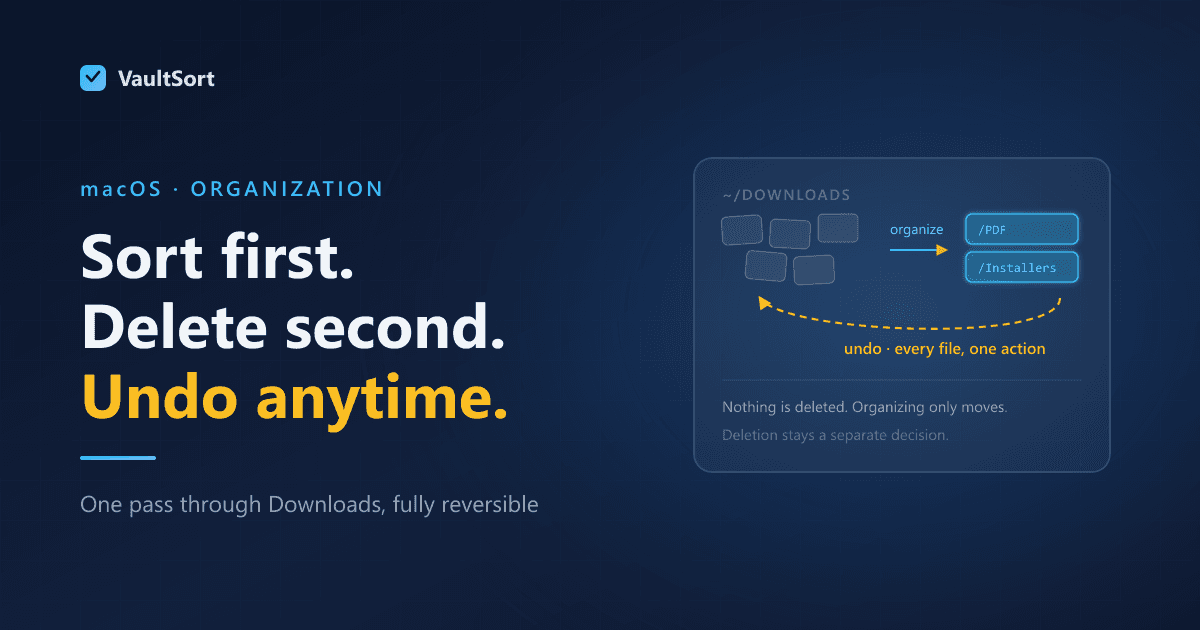
One click to organize. Files are grouped into folders by type. No rules to write, no configuration.
One click to undo. Every file goes back exactly where it was. Not a log to work through — the actual reversal, as one action.
Nothing is deleted. Organizing moves files; it never removes them. Deletion stays a separate, deliberate decision you make afterwards, when the categories have made it obvious which ones are disposable.
Then the optional parts. Duplicate detection by content rather than filename, so the same PDF saved under four names is caught. A large-file finder for the ISOs. And if some of what you find should be removed properly rather than dropped in the Trash, secure deletion is there.
If you want more control than "sort by type", Advanced Organization takes rules with real exclusions — "move PDFs older than 30 days unless the name contains 'invoice'" is one rule, not a workaround.
A Method That Actually Sticks
- Sort Downloads by type. One pass, no deletions.
- Look at the result. If you dislike it, undo it. That is the entire point of undo existing.
- Delete the obvious categories. Installers you have run. Archives you extracted. Duplicates.
- File the survivors. There will be fewer than you expect, and they will be the ones that mattered.
- Repeat monthly, or set it to run on a schedule once you trust it.
The people who keep a tidy Downloads folder are not more disciplined than you. They just stopped treating it as hundreds of individual decisions.
VaultSort is free to try on macOS and Windows. Related: the Hazel comparison for rule-based automation.