Open your Downloads folder. If you can see the bottom of it without scrolling, this post is not for you.
For everyone else: the folder is full of installers you already ran, PDFs you meant to file, three versions of the same spreadsheet, and screenshots named after timestamps. You have probably tried to fix it before. You may still have a PowerShell script somewhere that you no longer entirely trust.
Windows has never shipped an answer to this. macOS users have had Hazel since 2006. On Windows the options are a small collection of ageing utilities, Power Automate, or writing it yourself. This post covers what each of those actually gets you, and where they break.
Why This Is Harder on Windows Than It Should Be
Three things make Windows file automation awkward, and they explain most of the frustration.
There is no supported system hook for "a file appeared". macOS has FSEvents, a first-class API for watching a directory tree. Windows has ReadDirectoryChangesW, which works, but is low-level enough that most scripting approaches fall back to polling — checking the folder every few seconds. Polling misses fast-moving files and wastes cycles doing nothing.
Files are frequently locked. Windows holds exclusive locks far more readily than Unix systems do. A browser still writing a download, an antivirus scanner mid-check, or an editor with the file open will all cause a move to fail. A script that does not anticipate this either crashes or, worse, half-moves things.
Paths break in ways that are easy to miss. Case-insensitive but case-preserving, backslash separators, drive letters, UNC network paths, the 260-character limit and its opt-out, and reserved names like CON and NUL that cannot be filenames at all. Every one of these has ruined somebody's rename script.
None of this is insurmountable. It is just more than a weekend of scripting usually accounts for.
The Existing Options, Honestly
PowerShell scripts
Free, infinitely flexible, and already installed. For a one-off reorganisation it is genuinely the right tool — twenty lines will sort a folder by extension.
The trouble is everything after that. Scheduling it means Task Scheduler. Watching a folder means a polling loop or a FileSystemWatcher that silently stops after an unhandled error. Handling locked files means retry logic. Undoing a bad run means you should have written a log, and you did not.
Scripts also fail quietly. A rule that stops matching does not announce itself; you notice weeks later when you go looking for something.
Good for: one-off cleanups, and anyone who enjoys this. Bad for: anything you need to keep working without supervision.
File Juggler and DropIt
The closest Windows equivalents to Hazel. Both do rule-based sorting, both have been around a long time, and both work.
Their limits show up at scale and at complexity. Rule evaluation is sequential, so large folders get slow. Exclusions tend to be awkward — expressing "move all PDFs except the invoices" often means restructuring your rules rather than adding a condition. And undo, where it exists, is per-operation rather than per-run.
Good for: straightforward rules on folders of moderate size. Bad for: nested logic, large directories, or recovering from a rule that did the wrong thing to a thousand files.
Power Automate
Microsoft's own automation platform, and the answer you will get from most search results because Microsoft ranks well for it.
It is built for cloud workflows — SharePoint, Outlook, Teams. Local file operations are possible through the desktop agent but feel bolted on, and the licensing gets complicated the moment you want anything scheduled reliably.
Good for: organisations already inside the Microsoft automation ecosystem. Bad for: one person who wants their Downloads folder sorted.
What Actually Matters in a File Automation Tool
After watching people abandon these tools, the failures cluster:
-
You cannot undo it. The first time an automation moves a thousand files somewhere unexpected, you need every one of them back where it was. Not a log to work from — the actual reversal. Tools without this get uninstalled after exactly one bad run.
-
You cannot express exclusions. Almost every real rule has a "but not" in it. If the tool cannot say not, you will either restructure your whole rule set around the limitation or give up.
-
It fails silently. A rule that stops matching, a locked file that was skipped, a destination that no longer exists. If the tool does not tell you, you will find out by missing a file.
-
It is slow on the folders that need it most. The folder with 40,000 files is precisely the one you wanted automated.
How VaultSort Approaches It on Windows
In VaultSort for Windows, file organization has full parity with the Mac build rather than being a reduced port.
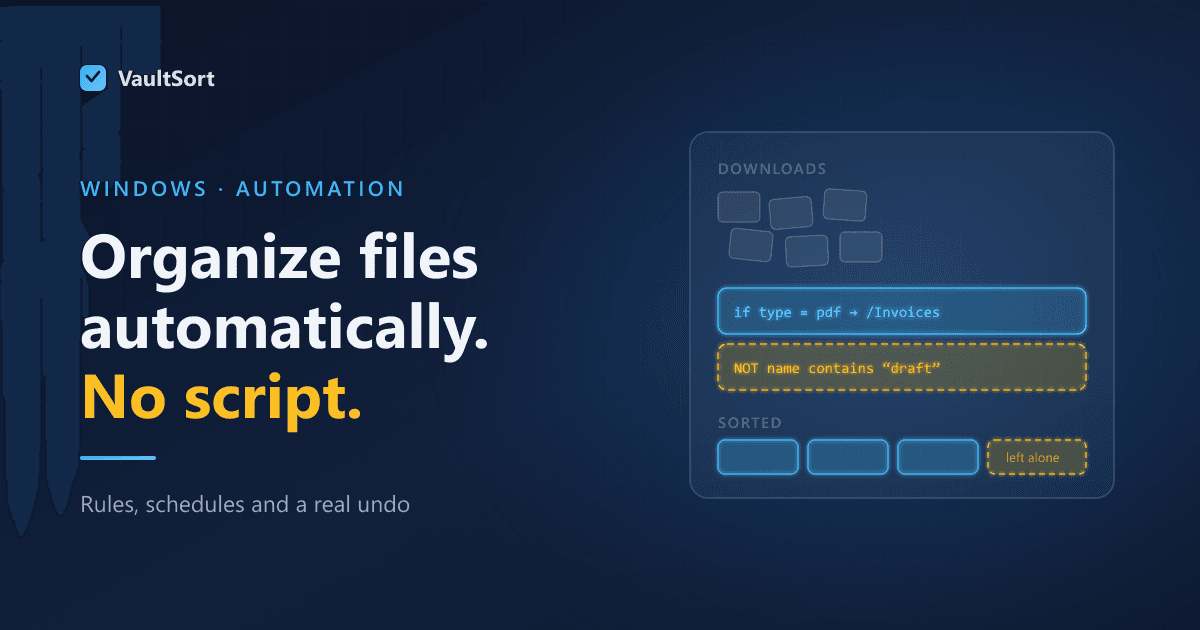
One-click organize, with a real undo. Auto-Organize sorts a folder by file type with no configuration. Undo-Organize reverses the entire run, restoring every file to where it came from — not a log to work through by hand, an actual reversal. That is what makes the first run safe to try on a folder you care about.
A rule engine with NOT. Advanced Organization supports exclusions as a first-class part of the rule graph, so "move PDFs older than 30 days unless they contain 'invoice'" is one rule rather than a workaround. Rules can be run manually, on a schedule through Task Scheduler, or on a folder watch using ReadDirectoryChangesW rather than polling.
A Rust engine underneath. File discovery and movement run natively and in parallel, which is what makes large directories tractable rather than a progress bar you leave running overnight.
Explorer integration. Right-click a folder and organize it, through registry-verb context menus — the Windows mechanism, not an emulation of the Mac one.
Honest failure reporting. Locked files, permission refusals and unreachable destinations are reported rather than skipped silently. On Windows this matters more than on macOS, because locked files are routine rather than exceptional.
One thing worth stating plainly: search is not available in the Windows build yet. The macOS version has it; the Windows port does not, and the app reports it as unavailable rather than pretending otherwise. If search is central to how you work, that is a real gap today.
A Sensible Place to Start
Do not automate everything at once. The people who stick with file automation almost always start the same way:
- Pick one folder. Downloads. It has the most churn and the least at stake.
- Run a plain organize first, before writing any rules, and look at the result. If you do not like it, undo it — that is what undo is for.
- Add one rule for the thing that annoys you most. Installers into an Installers folder, screenshots into a dated folder.
- Only then schedule it. A rule you have watched run correctly a few times is a rule worth automating.
The failure mode with these tools is always the same: building an elaborate rule set on day one, letting it loose on a folder that matters, and losing confidence permanently when it does something surprising.
VaultSort for Windows is free to try. Download it here. On a Mac? The Hazel comparison covers the same ground for macOS.