You are about to sell a laptop, hand back a work machine, or throw away a USB stick that has been in a drawer since a job you no longer have. You right-click the drive, choose Format, and three seconds later Windows says it is done.
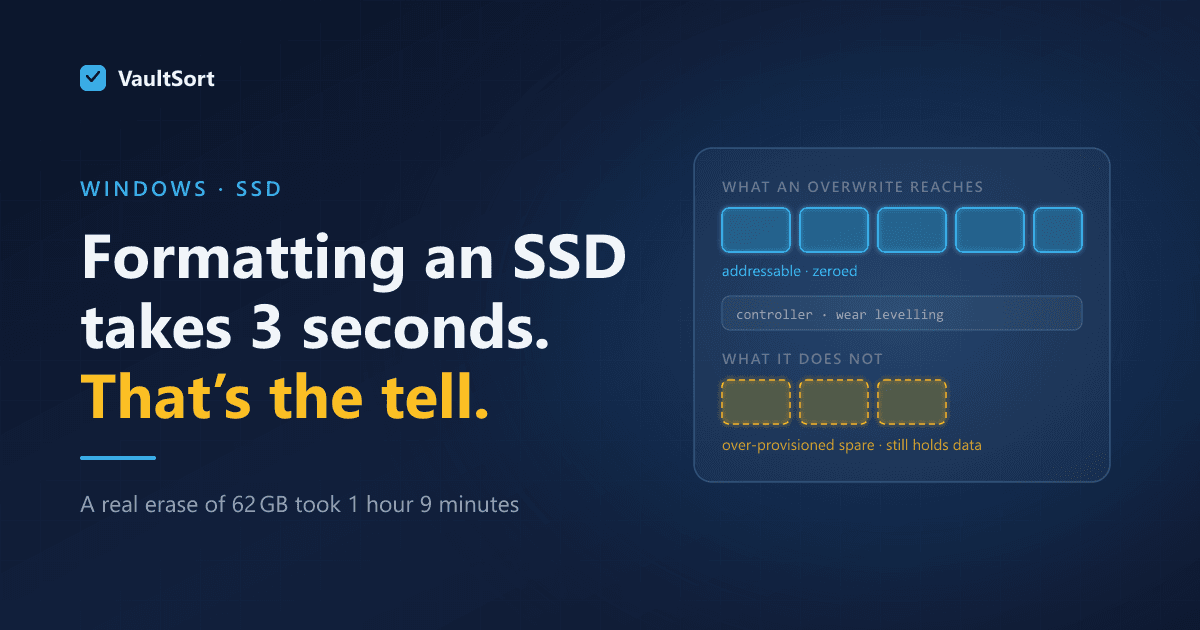
Three seconds is the tell. Writing 62 GB of anything takes longer than three seconds. Whatever just happened, it was not erasing your data.
This post covers what Format actually does, why SSDs need a completely different approach from hard disks, and what a real erase costs in time — using numbers measured on hardware rather than guessed at.
What "Quick Format" Actually Does
Formatting a volume writes a new, empty filesystem structure: a fresh Master File Table on NTFS, a fresh allocation table on FAT32. The clusters your files occupied are marked free.
The file data itself is not touched. Not overwritten, not zeroed, not scrambled. It sits exactly where it was, and recovery software finds it by scanning for file signatures rather than reading the directory you just replaced.
Windows does offer a full format, which since Vista writes zeros across the volume. That is genuinely better than Quick Format, and for a hard disk it is often enough. But it has two limits worth knowing:
- It writes one pass of zeros. For most threat models that is fine. For anything covered by a data-handling obligation, one pass of a known pattern is usually not what the standard asks for.
- On an SSD, it does not do what you think — for reasons that have nothing to do with Windows.
Why SSDs Break the Overwrite Model
Overwriting works on a hard disk because logical sectors map to physical sectors. Write to sector 5,000 and you change the magnetic state of that spot on the platter.
SSDs do not work like that. Flash cells wear out after a finite number of writes, so the controller maintains its own translation layer between the addresses Windows uses and the physical cells underneath, and deliberately spreads writes around — wear levelling. It also holds spare capacity that is not addressable at all — over-provisioning, typically 7% or more of the drive, and sometimes far more.
The consequence: when you overwrite a file on an SSD, the controller very often writes your new data to a different physical cell and marks the old one for erasure later. The original contents remain in flash until garbage collection gets to them.
So on an SSD:
- A 35-pass overwrite is not thorough. It is 35 times the wear for very little additional certainty.
- Data can persist in over-provisioned space that no amount of writing through the filesystem can reach.
- The right tools are the ones that talk to the controller rather than around it.
The Three Approaches, and When Each Applies
TRIM — tell the controller what is free
TRIM is a command that informs the SSD which blocks no longer contain live data, so its garbage collector can erase them. It is not a security feature by design, but the effect is real: TRIMmed blocks typically return zeros on subsequent reads, and the cells get erased during normal maintenance.
This is the cheapest and least damaging option on an SSD. It is also Windows-only in VaultSort's case — macOS exposes no equivalent command an application can invoke, so this is one of the few places where the Windows build genuinely does something the Mac build cannot.
Use it when: you deleted sensitive files from an SSD you are keeping.
Free-space overwrite — fill what is unallocated
Writes across the volume's free space so that anything previously deleted has nowhere left to hide, then releases it. On a hard disk this is the correct answer for "I deleted things a while ago and want them gone."
On an SSD it is less absolute — over-provisioned space stays out of reach — but combined with TRIM it closes most of the gap.
Use it when: the drive stays yours but its deleted history should not.
Full-drive erase — the only complete answer
Overwrites the entire device, partition tables included. This is what you want before a drive leaves your possession.
It is also the slow one, and it is worth knowing how slow before you start rather than discovering it three hours in.
What a Real Erase Actually Costs
These are measured, on a 62 GB Kingston USB drive:
| Operation | Time |
|---|---|
| Whole-drive erase, 1 pass | 1 hour 9 minutes |
| Whole-drive erase, 3 passes | 3 hours 29 minutes (173.2 GiB written) |
| Free-space overwrite | Ran to completion on the same drive |
Two things follow from that table.
Multi-pass is roughly linear. Three passes take three times as long, because the work is genuinely three times the writing. Anyone offering you a 35-pass erase is offering you a day and a half on a USB stick.
One pass is usually the right choice on modern hardware. The multi-pass advice everyone repeats comes from Gutmann's 1996 paper about MFM and RLL encoding on drives of that era. It has not applied to any drive manufactured this century, and the paper's own author has said so. Use multiple passes when a standard you are held to requires them, not out of superstition.
What VaultSort Does on Windows
In VaultSort for Windows, disk erase was measured on real hardware before this post claimed anything about it — the table above is that measurement.
Whole-disk erase with a live progress report and an honest time estimate, so a three-hour operation announces itself as one.
Free-space shredding on a chosen volume, run to completion on the 62 GB drive above.
TRIM on demand, issued through the Windows storage layer. It succeeds on a formatted volume and correctly refuses on a RAW one rather than reporting a success it did not achieve.
Refusals rather than half-measures. Erasing a single volume on a multi-partition removable drive cannot be done safely, so VaultSort refuses it up front and offers the whole-disk alternative instead. A tool that attempts the impossible operation and reports partial success is worse than one that declines.
One limit worth stating plainly: you cannot erase the drive Windows is currently running from. Nothing can — the operating system is using it. For wiping a system drive before disposal, use Windows' own Reset with the "clean the drive" option, or erase it from another machine.
A Practical Checklist
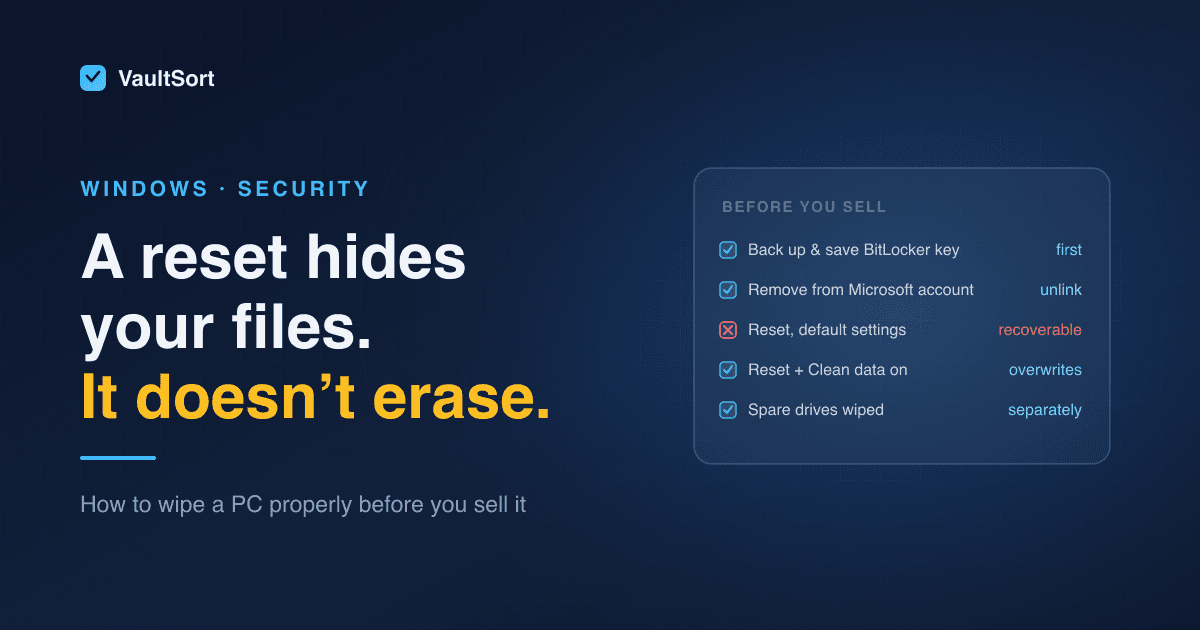
Selling or returning a laptop: Reset Windows with data cleaning enabled. If the drive is an SSD and the machine supports it, a firmware Secure Erase from the manufacturer's tool is the strongest option.
Retiring an external drive or USB stick: Whole-drive erase. One pass on modern hardware, more only if a standard requires it.
Keeping the drive, removing history: TRIM if it is an SSD, free-space overwrite if it is a hard disk, both if you want belt and braces.
Handling regulated data: Whole-drive erase, and keep the record of what was done and when. The record is often the part that matters at audit.
VaultSort for Windows is free to try. Download it here. Related: what actually survives a delete on NTFS.