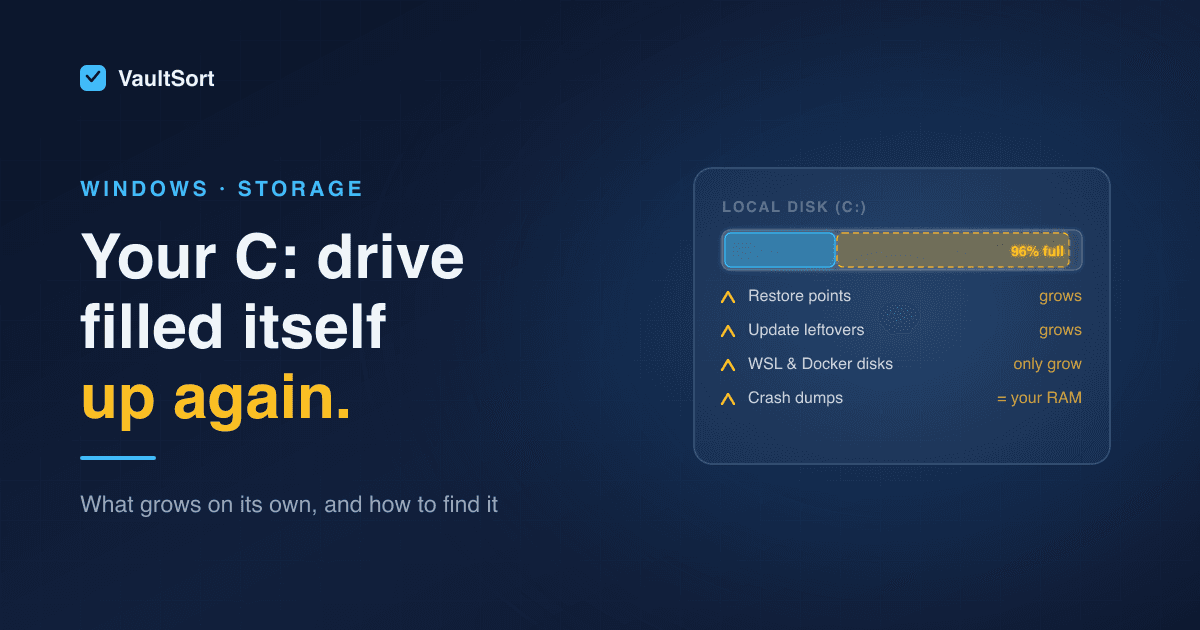
You didn't install anything. You didn't download anything big. Yet Windows says the C: drive is full again, and the red bar in File Explorer is back.
"C drive full for no reason" is one of the most common Windows complaints, but there is always a reason. It's just not one you put there. A handful of things on Windows grow by themselves: snapshots, update leftovers, crash dumps, virtual disks and caches. Most of them never show up in a normal folder view.
This post is about those. If you're after a general cleanup, start with how to free up disk space on Windows. If the drive keeps refilling itself, read on.
First, Find Out What Is Actually Growing
Deleting on a hunch is how people remove things they needed. Measure first.
Settings → System → Storage gives a breakdown by category. Click Show more categories. If "System & reserved" or "Other" is the big one, the answer is in one of the sections below. If it's "Apps" or "Documents", it's something you can see.
For a real answer you need size by folder: a tool that walks the whole drive and shows which directory holds the gigabytes. The storage breakdown in VaultSort for Windows does this in the free version, as do free utilities like WizTree and WinDirStat. The useful trick is to measure twice, a few days apart. Whatever grew in between is your culprit.
The Things That Fill C: by Themselves
1. System Restore points that keep accumulating
Every major update and many driver installs create a restore point. Windows lets restore points use a percentage of the drive, and on some machines that cap is generous enough to swallow tens of gigabytes.
Check how much they're using, from an administrator Terminal:
vssadmin list shadowstorage
To cap it, open System Protection (search "Create a restore point"), select C:, click Configure, and lower Max Usage. Around 5–10% is reasonable. Don't turn System Restore off completely on a machine you depend on. It's the cheapest undo Windows has.
2. Windows Update leftovers
Updates leave three kinds of residue behind:
- Downloaded update files in
C:\Windows\SoftwareDistribution\Download. - Superseded components in the component store (WinSxS). Never delete from that folder by hand. Let Windows do it:
DISM /Online /Cleanup-Image /StartComponentCleanup - Windows.old, after a feature update: a full copy of the previous Windows, often 15–30 GB. Windows removes it by itself after about 10 days. If you're sure you won't roll back, delete it sooner from Settings → System → Storage → Temporary files → Previous Windows installation(s).
Disk Cleanup → Clean up system files handles the first and third safely, and also offers Delivery Optimization Files, the update copies Windows keeps to share with other PCs.
3. The hibernation file, after a RAM upgrade
C:\hiberfil.sys is sized to your installed memory. Upgrade from 16 GB to 64 GB of RAM and roughly 48 GB of C: disappears with nothing new in any folder. On a desktop you never hibernate, powercfg /hibernate off reclaims it. The disk space guide covers the trade-off.
4. The page file growing under memory pressure
When the page file (C:\pagefile.sys) is "system managed", Windows grows it when the machine runs short of memory. A week of heavy browser tabs or a big Lightroom session can push it up by several gigabytes.
Leave it alone. Deleting or disabling the page file causes crashes and gains you little. If it's large, that's a sign the machine needs more RAM, not that the file is wrong.
5. Crash dumps
When Windows blue-screens, or a driver fails, it can write the contents of memory to disk:
C:\Windows\MEMORY.DMP, which can be as large as your RAMC:\Windows\Minidump\andC:\Windows\LiveKernelReports\, smaller but they pile up
A machine with an intermittent driver problem can collect these quietly for months. Disk Cleanup lists them as System error memory dump files. If you're still chasing the crash, keep the most recent one; it's what a technician will ask for.
6. Logs that stopped rotating
Windows and most apps rotate their logs, deleting old ones as new ones arrive. Occasionally one doesn't, and a single folder grows by gigabytes a week. Common places to look:
C:\Windows\Logs\(especially theCBSsubfolder)C:\ProgramData\(each vendor has its own folder)%LOCALAPPDATA%(your user's app data)
A folder of .log or .etl files measured in gigabytes is the giveaway. Fix the cause too: a crash-looping service or an app stuck in verbose logging will just refill it.
7. WSL and Docker virtual disks
If you use WSL or Docker Desktop, this is the most likely answer. A Linux distribution under WSL 2 stores everything in a virtual disk file called ext4.vhdx. That file grows when Linux uses space but doesn't shrink when Linux frees it. Pull a 20 GB dataset, delete it, and Windows still sees a 20 GB larger file.
Docker Desktop keeps its images and containers in the same kind of virtual disk, so docker system prune frees space inside Linux without necessarily giving it back to Windows.
To give it back:
- Recent WSL versions can return freed space automatically:
wsl --manage <DistroName> --set-sparse true. - Or compact it by hand: run
wsl --shutdown, opendiskpart, thenselect vdisk file="<path to ext4.vhdx>"andcompact vdisk. The file usually lives under%LOCALAPPDATA%\Packages\<distro>\LocalState\.
8. Cloud sync pulling files back down
OneDrive, Dropbox and Google Drive can keep files online-only, but things quietly bring them back. Opening a file downloads it; so does "Always keep on this device" on a big folder, or a backup tool reading every file. Over time, an "online-only" library becomes a local one.
In File Explorer, right-click the synced folder and choose Free up space (OneDrive) or the equivalent online-only option in Dropbox and Google Drive. Check which folders are pinned to "Always keep on this device".
9. App caches with no ceiling
Some apps cache aggressively and never clean up after themselves:
- Browsers
- Teams and Outlook (the Outlook
.ostfile grows with every mailbox you add) - Steam and other game launchers (shader caches)
- Adobe apps (media cache)
- Package managers like npm and pip
Each is usually a few gigabytes; together they can be tens.
Most of these apps have a setting to cap or clear the cache: Outlook's Mail to keep offline slider, Adobe's media cache preferences, the browser's Clear browsing data. VaultSort's Space Saver clears caches across your user profile. It only removes paths it recognises as safe cache locations, rather than anything that merely looks disposable.
What Not to Delete
Some of the biggest folders on C: look disposable and aren't:
C:\Windows\WinSxSby hand. Use DISM (above).C:\Windows\Installer. Apps need these files to update and uninstall.pagefile.sysandswapfile.sys.- Anything in
System32, whatever a forum post says. C:\ProgramDatawholesale. Look inside and remove only what you can identify.
Keep It From Happening Again
- Turn on Storage Sense (Settings → System → Storage) so temporary files and the Recycle Bin are cleared on a schedule.
- Cap System Restore at a sensible percentage.
- If you use WSL, enable sparse mode once.
- Measure the drive monthly. A ten-second look at what grew is far easier than a full drive at a bad moment.
Where VaultSort Fits
VaultSort for Windows shows where the space went:
- Storage breakdown by folder and large file discovery are in the free version.
- The paid licence ($24.99 once, up to six devices, Mac or Windows) adds Space Saver for caches and duplicate detection by content. Content matching catches the same file saved under different names.
To be honest about the limits: system-level cleanup on Windows is not yet as complete as on the Mac. Restore points, update leftovers and WSL disks still need the Windows tools above. When VaultSort can't delete something, for example a file locked by a running app, it says so instead of reporting a failure.
VaultSort for Windows is free to try. Download it here, or see the disk cleanup guide for Windows.