AI agents can now delete files on your Mac. Claude Code, Codex, Cursor and a growing list of tools run commands in your folders. They work fast, and almost always they do exactly what you asked.
Almost always. One wrong path in an rm -rf, one "clean up this folder" taken too literally, or one script that rewrites every file it touches, and your work is gone. It doesn't go to the Trash. Sometimes it's too new to be in last night's backup.
We think every Mac running an AI agent needs a safety net. So we built one.
Introducing Safety Net
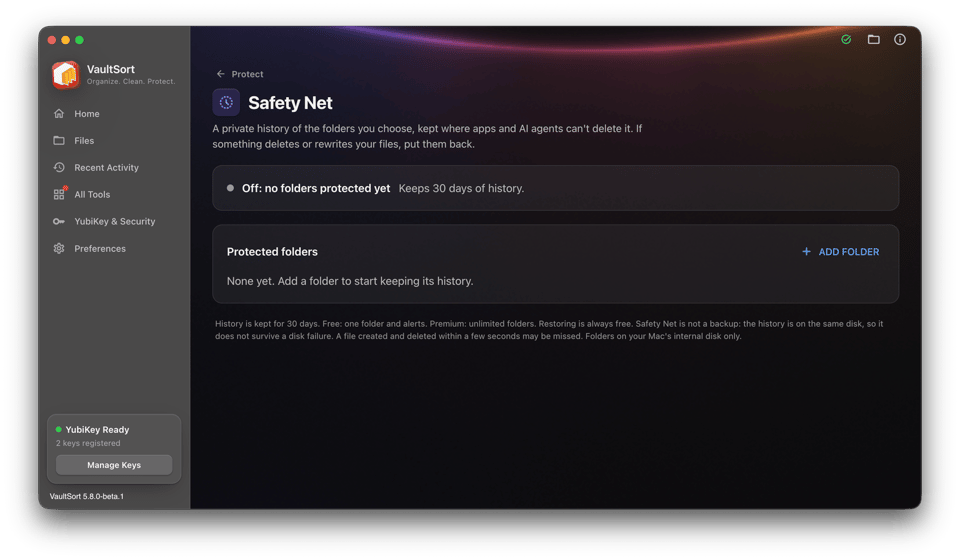
Safety Net keeps a private history of the folders you choose, and puts your files back when something deletes or rewrites them. It arrives with VaultSort 5.8.
What makes it different is where that history lives.
Most undo features keep their copies somewhere your own account can reach. Anything that runs as you, including an AI agent with a shell, can reach it too. A command that deletes your project can delete its backup copies in the same breath.
Safety Net's history is kept by VaultSort's system helper, outside your user account:
- Apps and AI agents can't touch it. Programs running as you can't read, change or delete it, not even an
rm -rfaimed straight at it. We tried. - Nothing can quietly switch it off. Turning Safety Net off for a folder asks for your Mac password, so no app or agent can do it on its own.
- It's watching even when VaultSort isn't open. If VaultSort is closed when something goes wrong, it opens by itself to offer the restore.
What it looks like
You protect a folder, say the project your AI agent works in, and get on with your day.
If more than 200 files in that folder are deleted or rewritten within a minute, VaultSort steps in within seconds and asks:
> Restore my-project? Safety Net saw a lot of files change in this folder at once. If you didn't expect it, restore the folder to how it was just before.
Click Restore and the folder is back the way it was a moment before the damage. In our testing, 550 files came back in a few seconds after the whole folder was deleted with rm -rf, every one identical to the original.
Restoring is gentle:
- Files you created since are kept. Nothing new is thrown away.
- Every restore can be undone. Safety Net saves the folder as it is first, so if you change your mind, you can go back.
- If the change was on purpose, choose Leave As Is. Nothing happens.
You can also open Protect › Safety Net at any time, pick a moment from the folder's history, and put it back.
Built for AI agents, not just against them
If you use AI apps through VaultSort's AI Connections (Claude Desktop, Claude Code or Cursor), Safety Net works with them:
- Before an AI app's first change in a protected folder, VaultSort makes a restore point.
- An AI app can make a restore point before risky work, and ask you to restore if something goes wrong.
- You always decide. An AI app can never restore, delete history or turn Safety Net off by itself.
We think this is how it should work everywhere: AI agents get real access to your files, and you keep a way back that they can't take away.
Also in 5.8: AI Connections
Safety Net is your way back. AI Connections is the safe way in.
VaultSort 5.8 includes its own MCP server, the standard way AI apps like Claude Desktop, Claude Code and Cursor connect to tools. Instead of handing an AI app your whole disk, you connect it through VaultSort and decide exactly what it can reach:
- It sees nothing until you give it a folder. Your Library, system folders, the Trash, other users' files and your Vault are always off limits.
- Reading file contents is off by default. Turn on Contents for a folder when you want the AI to read what's inside. Even then, VaultSort replaces passwords, keys, card numbers and similar secrets with placeholders before the AI sees them.
- Every change is a plan you can undo. The AI app proposes moves, renames and folders, VaultSort checks every step, and the changes appear in Recent Activity with an Undo button. It never deletes anything permanently and never replaces an existing file.
- Big or risky changes ask you first. Moving files to the Trash, or a plan with more than 50 changes, needs your OK in VaultSort. Don't Allow is the default.
- The AI can help with the rest of VaultSort too. It can find duplicate files, see what Space Saver could clean, and ask you to run one of your scheduled jobs. Each action that changes something waits for your approval.
- Keys stay out of reach. Each connection's key lives in your Mac's Keychain, not in the AI app's settings file where an agent could read it.
Setting it up takes a click: Settings › AI Connections, make a connection, then Set up Claude Desktop or Set up Cursor. For Claude Code, VaultSort shows the command to run. Searching, reading, previewing and undoing are free. Applying plans is free for your first 5, then needs Premium.
Put AI Connections and Safety Net together, and an AI agent can do real work in your files while you keep control, and keep a way back.
The details
- Mac only for now, both Safety Net and AI Connections.
- Safety Net protects folders on your Mac's internal disk.
- History is kept for 30 days.
- Free: protect one folder, with alerts. Premium: protect as many folders as you like. Restoring is always free.
- It isn't a backup. The history is on the same disk, so it won't survive a disk failure. Keep your Time Machine or cloud backup too.
- Very short-lived files may be missed. A file that's created and deleted within a few seconds may not make it into the history.
Try it early
Safety Net is in VaultSort 5.8, and you can try it now on the beta channel: Settings › Updates › Beta. When 5.8 is released to everyone, it will be in your next update.
To set it up, open Protect › Safety Net, install VaultSort's helper when it asks, and add the folders your AI tools work in.
VaultSort turns two
One more thing: VaultSort's first line of code was written two years ago this month, in October 2024. It started as a way to sort a messy Desktop. Today it organizes, cleans, encrypts, securely deletes, and now keeps watch over the folders your AI agents work in.
Thank you for being here for it, whether you've been with us since the first build or just joined. Your bug reports, feature ideas and kind words shaped every release. Here's to year three.
Justin
VaultSort
Ready to Secure Your Mac?
Experience the latest features and security improvements mentioned in this update. Join thousands of Mac users who trust VaultSort to organize and protect their files.