
Rules that clean up after you
Build precise file-organization rules, preview them safely, and set them to run on their own — on a schedule or the instant a file lands. Here's everything Advanced Organization can do, and how to get the most from it.
Advanced Organization is a VaultSort Premium feature · $24.99 one-time, lifetime
One idea: find files, then act on them
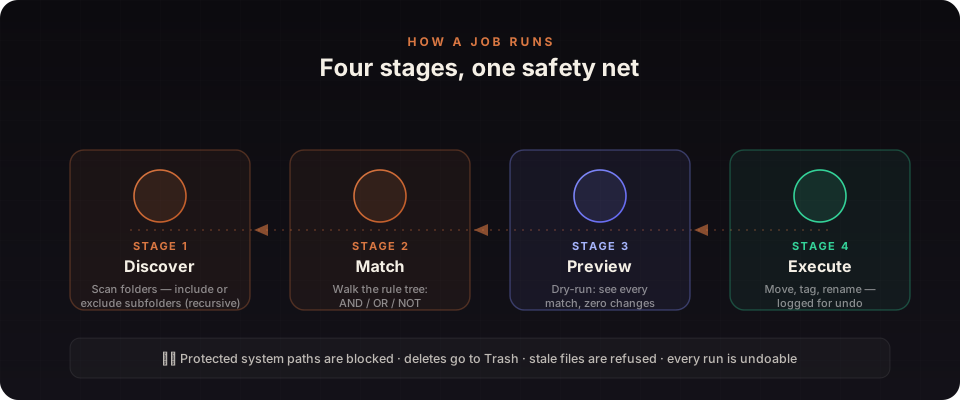
Every job runs the same four stages. A dry-run preview sits between building and doing, so nothing changes until you've seen it.
Anatomy of a rule
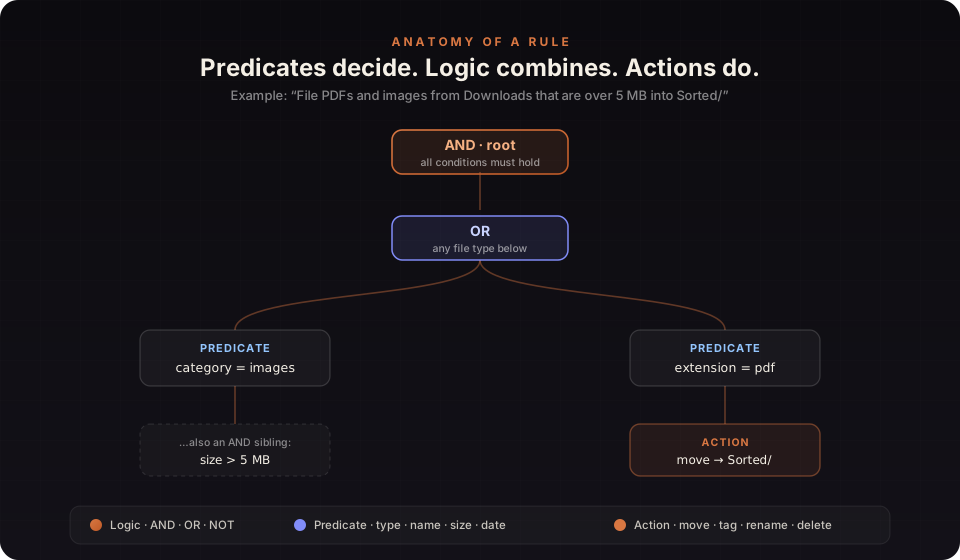
A rule is a small tree. Predicates decide which files qualify, logic combines them, and actions do the work.
Predicates — the “which files”
Eight ways to match, mixable in one rule.
categoryMatch one of eight built-in buckets: images, videos, audio, documents, archives, code, links, directories.
extensionMatch exact extensions like pdf, dmg, or a set such as jpg / png / gif.
filenameContains, starts with, ends with, equals, or a regular-expression match — case-sensitive optional.
pathMatch the full folder path. The key to per-folder rules and carving out exclusions.
metadataCompare size in bytes, or created / modified / accessed dates — with rolling values like “older than 6 months”.
contentSearch text inside files (contains / regex). Optionally run on-device OCR to match text inside images.
semanticCategoryMatch against your own AI-trained categories for topical sorting the built-in buckets can’t express.
isEmptyMatch directories that contain nothing — perfect for cleanup rules.
Actions — the “what to do”
Chain up to two per file (e.g. rename → move).
Relocate matched files. Conflicts are auto-renamed by default (or skip / overwrite).
Duplicate files into a destination while leaving the originals in place.
Rewrite names with placeholders and optional find-and-replace.
Apply a coloured macOS Finder tag. Non-destructive — the file never moves.
Send to the macOS Trash — always recoverable, never a hard delete.
Route each file into a per-category subfolder from a Smart Categorize set.
Naming & foldering variables
Use these in rename patterns and move destinations — e.g. ~/Photos/{date:YYYY}/{date:MMMM} files a photo into 2026/July/.
{name}Original filename, no extension{ext}File extension, no dot{date}Modified date · YYYY-MM-DD{datetime}Modified date & time{date:YYYY}Custom date tokens (year, MMMM, DD…){counter}Auto-incrementing number{year} {month} {day}Individual date parts{size}File size in bytesBuild your first job in five steps
Choose a starting point
Pick a built-in template, describe your goal to the AI Job Builder, or start with a blank rule tree. All three land in the same Visual Rule Builder.
Point it at folders
Set the input folders to scan and, optionally, exclude noisy paths like node_modules or .Trash. Turn recursion off to touch only top-level files.
Build the rule
Add predicates (the “which files”), combine them with AND / OR / NOT, and attach actions (the “what to do”). Every node is editable and explained inline.
Dry-run the preview
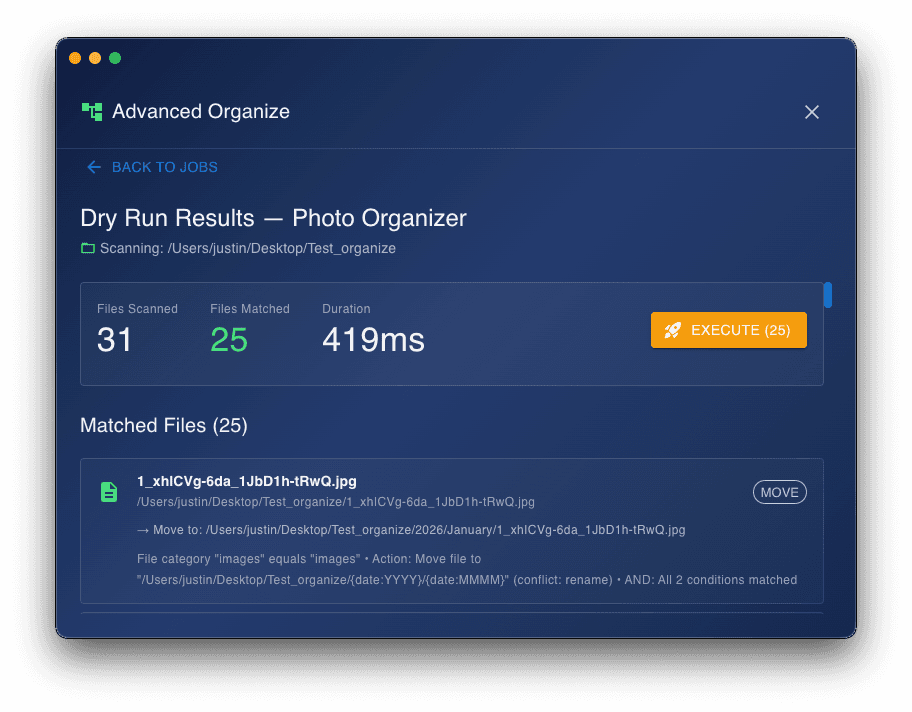
See exactly which files match and what will happen to each — with zero changes made. Read the warnings, then refine until it’s right.
Execute — or automate
Run it once, or save it and hand it to a schedule or a folder watcher to run unattended. Every real run is logged for undo.
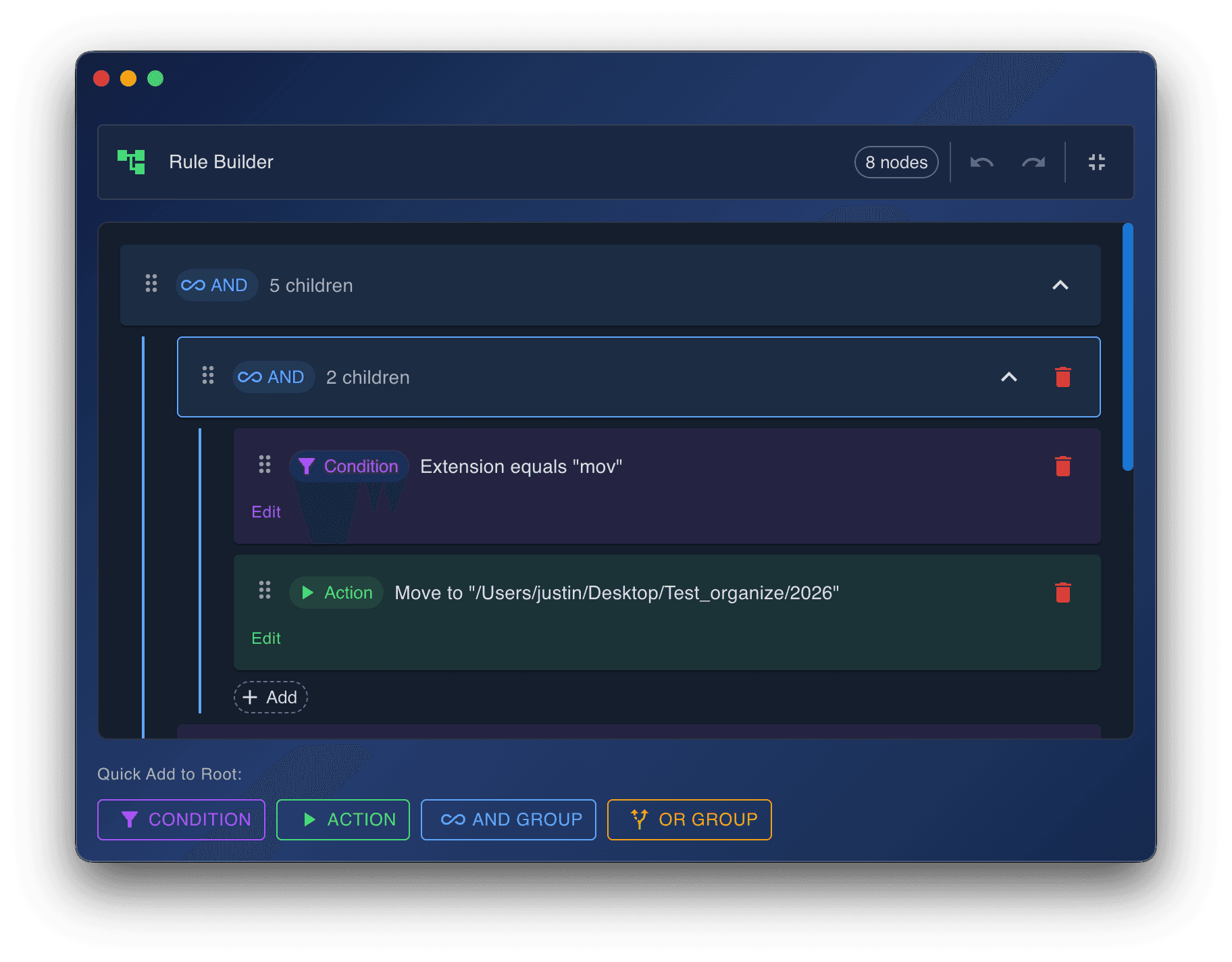
The Visual Rule Builder — every node editable and explained.
See it before it happens
Every job can be previewed without touching a single file. VaultSort lists which files matched, which didn't, and exactly what each action would do — then flags anything worth a second look with clear, actionable warnings.
- ✓Matched vs. unmatched files, side by side
- ✓Warnings for permission issues, oversized content, unsafe regex, and more
- ✓Files that changed since preview are refused at execute time
Start from a template
Eight ready-made jobs cover the classics. Load one, adjust the destination, and you're done — or use it as a base and edit from there.
Sort by File Type
Images, videos, documents, music, and archives into tidy subfolders.
Photo Organizer
File photos into Year / Month folders from their date.
Screenshot Organizer
Sweep “Screenshot …” images into a dedicated folder.
Installer Cleanup
Collect .dmg and .pkg installers for easy removal.
Delete Empty Folders
Trash empty directories to clear clutter.
Project Archiver
Archive anything untouched for six months.
Large File Finder
Tag files over 1 GB red so you can decide what stays.
Duplicate Name Tagger
Flag “(1)” and “copy” files as possible duplicates.
Or just describe it
Don't want to wire up nodes by hand? Tell the AI Job Builder what you want in plain English and it writes the whole rule tree — then loads it into the Visual Rule Builder so you can inspect every node before running. Already have a job? Use Revise With AI to change it with a sentence and review a structural diff.
Run it on Apple Intelligence (Mac) or Ollama on your own computer, where nothing leaves the machine, or bring your own OpenAI, Anthropic or Google Gemini key. Keys are encrypted on your device and used to call the provider directly — VaultSort never sees or proxies them. A cloud provider receives your request, the folders the job works on and the rule structure, never file names or contents. Apple Intelligence, Ollama and Gemini's free tier cost nothing.
Explore AI Job Builder →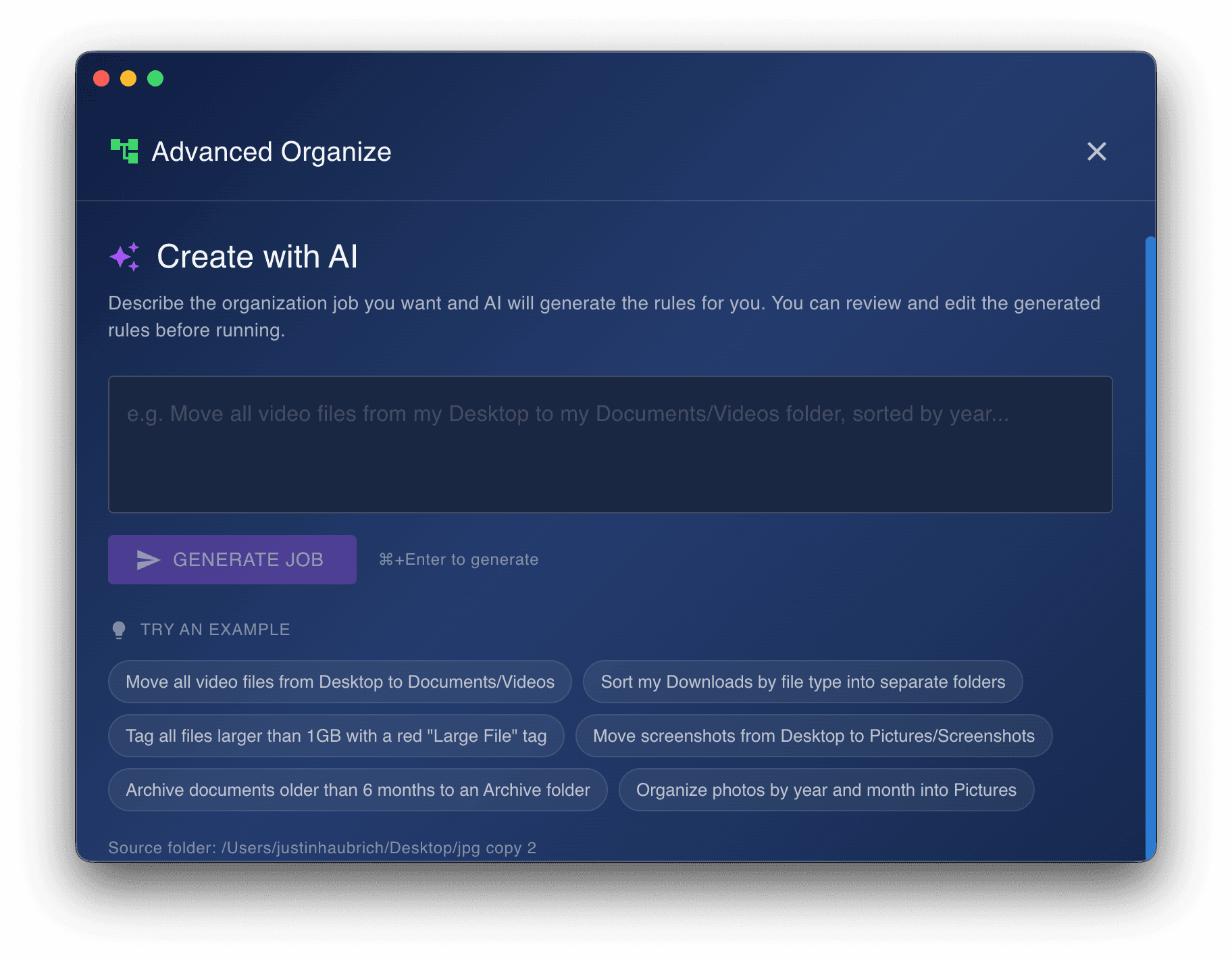
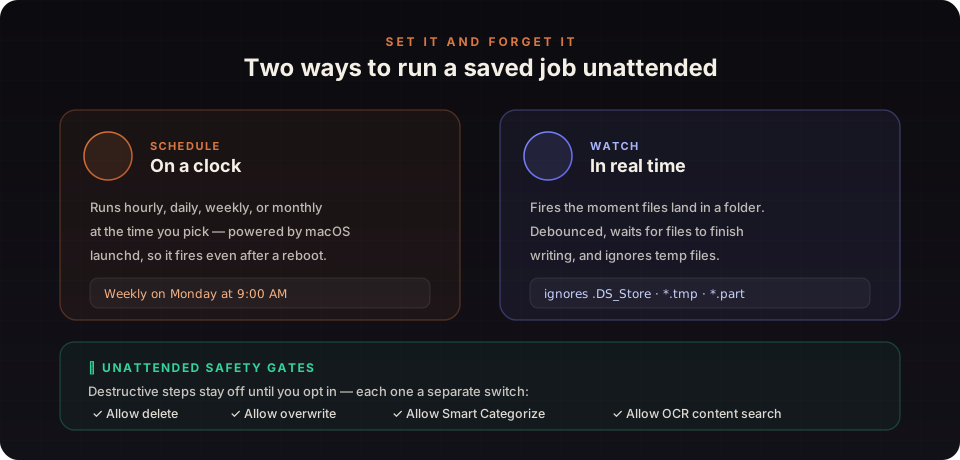
Then let it run without you
Save a job once and hand it to the scheduler or a folder watcher. Destructive steps stay switched off until you explicitly allow them.
Power-user tips
Small habits that make rules faster to build and safer to run.
OR order matters
An OR branch stops at the first match. Put the most specific rules first, or a broad rule will “eat” files meant for a later branch.
Use a catch-all
Make the last OR branch a catch-all (“else”) with no conditions to sweep everything not matched above into a fallback folder.
Prefer rolling dates
“Older than 6 months” as a rolling value stays correct on every future run. Reserve fixed dates for a specific calendar day.
Tag before you move
When you’re unsure, tag files instead of moving them. Tags are non-destructive — a safe way to triage before committing.
Path rules for folders
Use a path predicate to scope a branch to one folder, or to exclude a subtree like ~/Library from a broad job.
Narrow the scope
Tighter inputs and exclude-paths beat clever rules. Previews cap at 50,000 files — refine scope if you hit the limit.
OCR only when needed
Content search skips files over 16 MB and binaries. Turn on OCR only to match text inside images — it’s slower.
Schedule a dry-run first
A first automated run in dry-run-only mode is a great confidence check before you let it start moving files.
Safe by default
Powerful automation only helps if it can't hurt you. These guardrails are always on.
System paths are blocked
Locations like /System, /Library, ~/Library, /usr, and /Applications can never be a source or destination.
Delete means Trash
The delete action moves files to the macOS Trash — recoverable — and never performs a hard delete.
Stale files are refused
If a file changed between preview and execution, VaultSort declines the outdated action rather than guessing.
Every run is undoable
Operations are recorded to Operation History for undo, and chained steps roll back if a later step fails.
Broken jobs are quarantined
A job that fails validation is set aside for recovery instead of being silently lost.
Unattended deletes opt-in
Delete, overwrite, Smart Categorize, and OCR each need an explicit toggle before they run on a schedule or watcher.
Common questions
How is this different from Auto-Organize?
Auto-Organize is the one-click “tidy this folder” feature. Advanced Organization is the rule engine — you decide exactly which files match and what happens to them, then reuse, schedule, or watch-trigger that job. They coexist; Advanced Organization never interferes with Auto-Organize.
Will it ever move or delete something I didn’t expect?
Not without you seeing it first. The dry-run preview shows every match and action before anything runs, deletes go to the Trash, protected system folders are blocked, and unattended destructive actions require an explicit opt-in.
Can I undo a run?
Yes. Real runs are recorded to Operation History for undo, and if one file in a chain fails, the earlier completed steps for that file are rolled back automatically. If the log couldn’t be written, VaultSort tells you the run isn’t undoable.
How big a folder can it handle?
Previews scan up to 50,000 files; scheduled and watch runs default to 100,000 (up to 500,000). Discovery skips inside macOS app bundles and honours your exclude-paths, so you can keep scope tight.
Do I need an API key?
No. The optional AI Job Builder and Revise With AI can run on Apple Intelligence (Mac) or Ollama without one, or use your own OpenAI, Anthropic or Gemini key. Everything else — templates, the Visual Rule Builder, dry-run, scheduling, and folder watching — works without any key.
Is it included in the price?
Advanced Organization is part of VaultSort Premium — a $24.99 one-time purchase with a lifetime license and free updates.
Set up a rule once. Never tidy that folder again.
Templates to start, a visual builder to refine, a preview to stay safe, and automation to keep it running. Advanced Organization is available now in VaultSort Premium.
Lifetime license · No subscription · Free updates · 30-day money-back guarantee