Duplicate finders are easy to build badly and hard to judge from a screenshot. They all show the same thing: a scan bar, a list of matches, a total in gigabytes.
The differences only surface when one of them deletes something you needed. This post is about spotting them beforehand.
Where Windows Duplicates Come From
Knowing the source predicts what yours look like.
- Downloads. The same attachment saved three times as
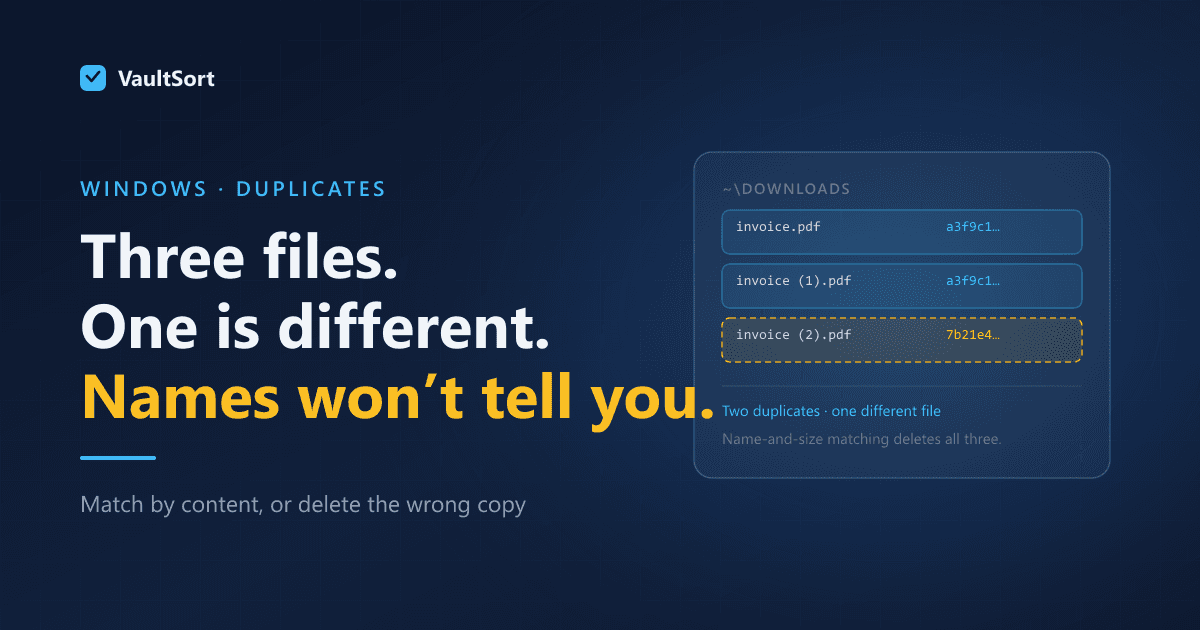
invoice.pdf,invoice (1).pdf,invoice (2).pdf. Windows' own numbering scheme is the single largest producer of duplicates on most machines. - OneDrive conflicts. Sync conflicts produce copies named after the device that made them —
report-DESKTOP-4F2K1.docx— with identical contents. - Migrating machines. Copying the old
Usersfolder to a new PC "just in case", which nobody ever revisits. - Photo imports. The same card imported twice, once by the Photos app and once by hand.
- Project directories.
node_modules, NuGet caches, Python virtual environments. Thousands of byte-identical files that are supposed to be identical.
That last one matters more than it sounds. Some of your duplicates exist on purpose, and deleting them ranges from wasteful to breaking software.
The Five Things That Separate These Tools
1. How does it decide two files are identical?
This is the whole question.
By name and size — fast, and wrong often enough to be dangerous. Two different photos from the same camera can share a byte count exactly. Two drafts of a document can share a name.
By hash of the full contents — identical if every byte matches. Slower and correct. This is what you want as the default.
By perceptual similarity — for images, comparing what the picture looks like rather than its bytes, so a resized or re-compressed copy is caught. Genuinely useful, and a different claim from "identical". A tool offering it should say plainly which mode you are in.
A tool that will not tell you which method it uses is telling you something.
2. Which copy survives?
You have four copies; something must choose. The strategies, in descending order of how much you will like them:
- Oldest — usually the original, usually right.
- Shortest path or name —
invoice.pdfoverinvoice (2).pdf. Also usually right. - You choose, per group — correct, and unbearable at four hundred groups.
- Whatever it scanned first — effectively arbitrary. Avoid.
The good design is a sensible automatic rule plus the ability to override before anything happens.
3. Does it protect what should not be touched?
Point a duplicate finder at C:\Users\you and it will find thousands of legitimate duplicates inside AppData, package caches, node_modules and Windows' own component store. Deleting from WinSxS will break Windows Update.
Good tools exclude system and package locations by default. Ones that scan whatever you point at hand you a list where the dangerous entries look exactly like the useful ones.
4. Where do the deleted copies go?
Recycle Bin is the right default — recoverable, obvious.
Permanent delete should exist and should never be the default.
Replacing duplicates with hard links saves the space while every path still resolves. Occasionally exactly right, and quietly surprising later when editing "one" file changes all of them. Fine as an option, wrong as a default.
5. Can you undo it?
The test for any bulk file tool: when it does the wrong thing to four hundred files, what happens next?
If the answer is "restore from the Recycle Bin one at a time, working out where each belonged", the tool does not really support undo. This is what decides whether people keep using these things after their first bad run.
What Windows Gives You
Nothing, really. There is no built-in duplicate finder — not in Explorer, not in Storage Sense, not in Disk Cleanup. Searching by size in Explorer will surface candidates and cannot compare contents.
PowerShell can do it correctly in about five lines using Get-FileHash, which is a fine answer for a one-off if you are comfortable there and careful about what you delete.
dupeGuru is free, open source, and does content-based matching with a fuzzy mode. Utilitarian interface, and it will let you do something unwise.
Auslogics, Wise Duplicate Finder and similar occupy the same broad category as CCleaner, with the same broad trade-offs around bundling and upsells.
How VaultSort Approaches It
VaultSort for Windows treats duplicate removal as one step in tidying a folder rather than a product in itself.
Content-based matching. Files are compared by content, not by name or size, so invoice.pdf and invoice (2).pdf are caught while two different photos of identical size are not.
Optional similar-image detection with its own threshold, kept as a distinct mode rather than blended into one number — because "looks the same" and "is the same" are different claims.
Nothing is deleted by default. The default action moves every duplicate into a folder you nominate, so the result is a pile you can inspect, restore from, or drag to the bin yourself. Secure deletion is available as a deliberate second choice, for duplicates you want gone rather than merely gone from view.
A keep rule you can predict. The copy that survives is the oldest by modification time, with ties broken by the shortest path and then alphabetically — deterministic, so two runs over the same folder never disagree about which file was the original.
Hardlinks are collapsed, not counted. Two paths that share the same storage are recognised as one file, so you are never offered space that deleting cannot free.
Two limits worth knowing. The scanner skips filesystem bookkeeping — $RECYCLE.BIN, System Volume Information and the Mac equivalents — but it does not carry an exclusion list for package caches or AppData. Point it at Downloads or a project folder rather than at C:\Users\you, for the reason in the section above. And OneDrive Files On-Demand placeholders are read rather than skipped, so scanning a folder full of them will pull their contents down; make them available offline first, or scan somewhere else.
Organize first, deduplicate second. Sorting a folder by type before hunting duplicates makes the results far easier to judge — forty PDFs rather than four hundred mixed files — and organizing is fully reversible, so the sequence stays safe.
A Method That Does Not Lose Files
- Start with one folder, not your whole user directory. Downloads first.
- Organize it, so duplicates are grouped by type and easy to assess.
- Scan by content, never by name.
- Read the keep-rule before confirming. Oldest or shortest-path is usually right.
- Move, do not delete, until you trust the result — into a folder you can look through.
- Delete that folder after a day of not missing anything.
Nobody has ever regretted step 5.
VaultSort for Windows is free to try. Download it here, or see the duplicate finder overview.