Most guides to duplicate photos are about iPhones. That's fine if your photos only live on your phone. But on a computer, duplicates pile up somewhere else entirely: the same holiday imported twice, a folder of camera exports copied to an external drive "just in case", a Downloads folder full of IMG_2041 (1).jpg.
Here's how to find them on a Mac and on a Windows PC, and how to remove them without losing the one copy that mattered.
Inside Apple Photos: Use the Built-In Duplicates Album
If the duplicates are inside the Photos app on your Mac, start there. Since macOS Ventura, Photos scans its own library and shows a Duplicates album in the sidebar, under Utilities, when it finds any.
- Open Photos and click Duplicates in the sidebar. (No album means none were found, or the first scan hasn't finished. It runs while the Mac is idle and on power.)
- Review each group, then click Merge.
Merging keeps the highest-quality version and moves the rest to Recently Deleted, where they stay for 30 days.
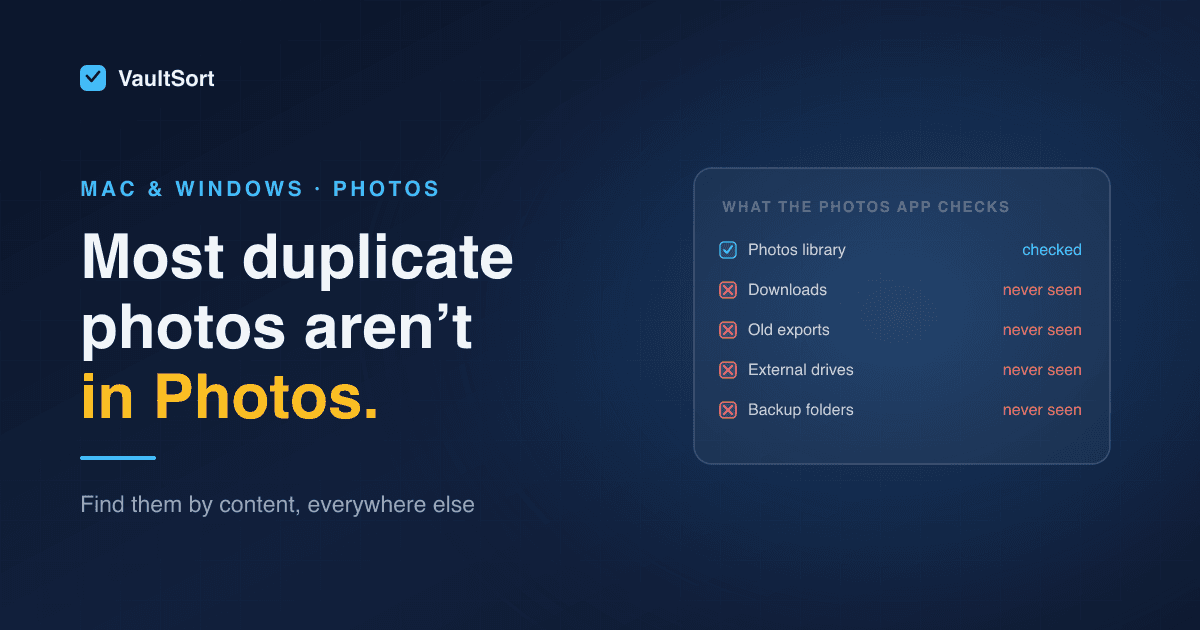
The limit: Photos only looks inside its own library. Copies in Downloads, Desktop, Documents, an external drive or a backup folder are invisible to it. That's usually where most of the waste is.
Never go into the Photos library package in Finder and delete files by hand. Photos keeps its own database of what's there, and deleting underneath it can damage the library.
Everywhere Else: Find Duplicates by Content, Not by Name
Outside the Photos app, the reliable way to find duplicates is to compare the contents of files, not their names. Names lie in both directions:
IMG_2041.jpgandIMG_2041 (1).jpgare probably the same photo, but you can't be sure from the name.Beach.jpgandDSC_0093.jpgcan be the identical file, renamed during an export.- Two different photos can share a name if they came from different cameras.
A content-based duplicate finder settles it by comparing the actual bytes. It also has to be fast: comparing every file against every other file would take forever on a big library. VaultSort, for example, first groups files by size, then by a hash of their first 64 KB, and only fully hashes the files that still match.
On a Mac
Finder can't find duplicates; it shows you file names and sizes, and that's all. Your options are a duplicate finder app, or Terminal tools if you're comfortable there. VaultSort's duplicate finder for Mac matches files by content, so renamed copies are caught, and it skips iCloud placeholders rather than downloading them. Scan the folders that collect photos (Pictures, Downloads, Desktop and any external drives) rather than the whole disk. To check your Photos library against everything else, scan an exported copy of the originals, not the library package itself.
On Windows
Windows doesn't include a tool for finding duplicate files; File Explorer can sort by name, size or date, but it can't compare contents. VaultSort for Windows finds duplicates by content across folders and drives in the same way. One caution: scanning a OneDrive folder reads its online-only files, which downloads them. Leave those folders out of the scan if you don't want that. Our Windows duplicate file guide covers the method in more detail.
Exact Copies vs "Similar" Photos
It's worth knowing what kind of duplicate you're dealing with:
- Exact duplicates are byte-for-byte identical files: the same photo copied, downloaded twice, or backed up into two places. These are safe to remove once you've kept one copy, and they're usually most of the wasted space.
- Near-duplicates are the five burst shots of the same moment, or an edited version alongside the original. They look alike but are different files. Deciding which to keep is a judgement call, not something to automate blindly.
Content-based matching finds exact duplicates, and it never claims two different photos are "the same". VaultSort also has an optional similar-image mode that flags look-alike photos using a perceptual hash. It lists those separately from exact matches, as suggestions for you to review, never something removed automatically.
Delete Safely: A Short Checklist
- Back up first. A duplicate cleanup is exactly the moment to have a recent backup.
- Decide which copy to keep by location. Keep the copy in your organised library or main Pictures folder. Remove the ones in Downloads, Desktop and "copy of" folders.
- Don't remove both copies of a pair because each one "looks like the duplicate". A good tool groups them and keeps one per group.
- Move duplicates aside first, to a separate folder or the Trash, rather than deleting them permanently, so a mistake can be undone.
- External and backup drives: make sure the copy you're removing isn't your only backup of that photo.
Where VaultSort Fits
VaultSort's duplicate detection runs on both Mac and Windows:
- It matches by content, so renamed copies are caught.
- It keeps the oldest copy of each group (ties go to the shortest path).
- By default it moves the other copies into a folder you choose instead of deleting them, so you can check before anything is gone. Secure deletion is there as a deliberate second step.
- An optional similar-image mode flags look-alike shots for review.
- It's part of the paid licence ($24.99 once, up to six devices, Mac or Windows).
Use the Photos app's own Duplicates album for the library, and VaultSort for everything outside it.
Try it on your own folders: download VaultSort for Mac or Windows.