title: "How to Free Up Space on Mac: The Complete 2026 Guide" date: "2026-03-26" excerpt: "Mac running low on storage? Here are the most effective ways to reclaim gigabytes of disk space — from clearing caches to finding hidden duplicate files." coverImage: "/images/blog/free-up-space-mac.png" categories: ["Storage", "macOS", "Guides"]
How to Free Up Space on Mac: The Complete 2026 Guide
If your Mac is constantly showing the "Your disk is almost full" warning, you're not alone. Between system caches, duplicate downloads, old app data, and media files, Mac storage fills up faster than most people expect.
Here's a practical, step-by-step guide to reclaiming space — starting with the biggest wins.
1. Check What's Using Your Storage
Before deleting anything, see where your space is going.
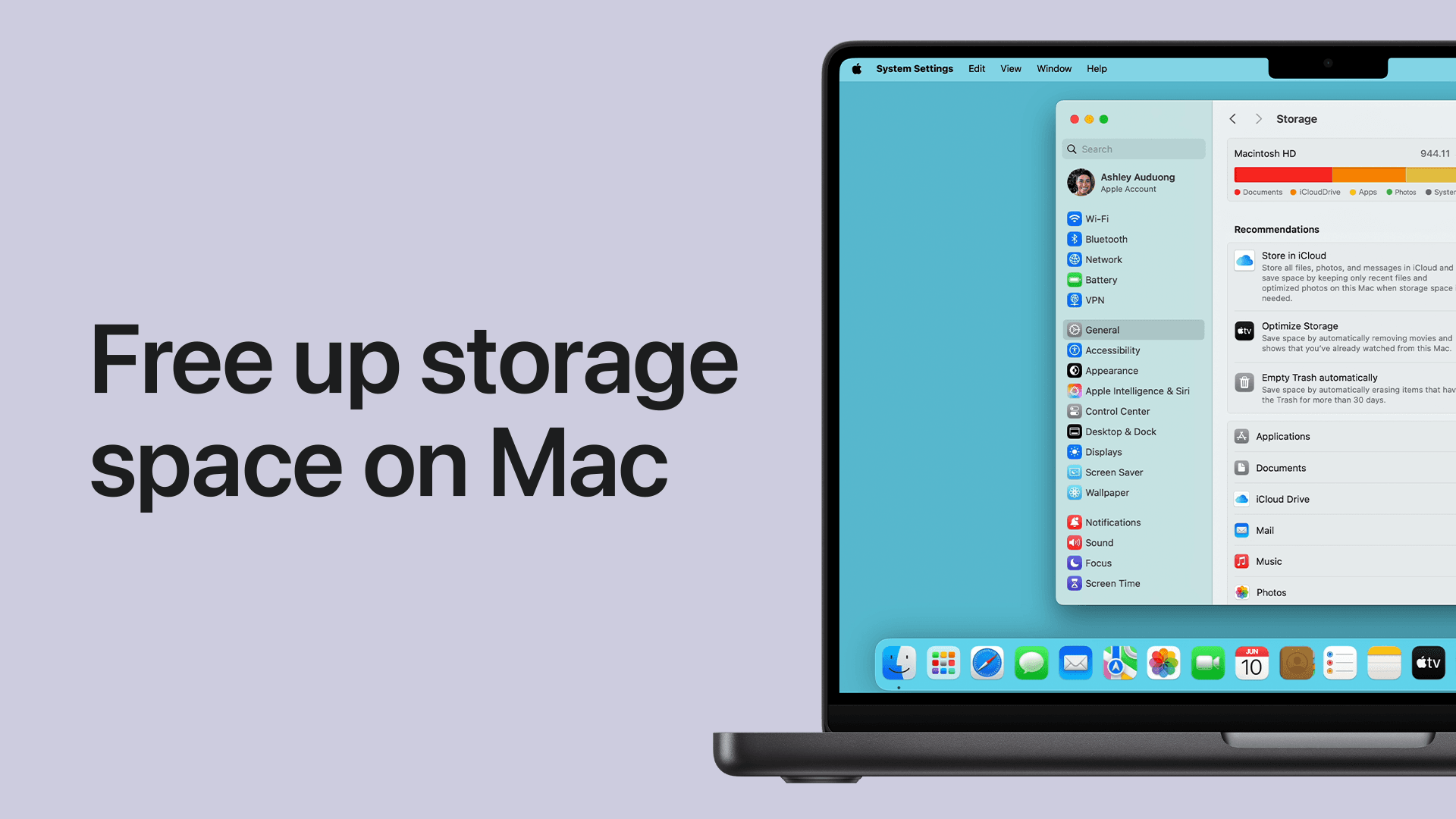
Go to: Apple Menu → System Settings → General → Storage
This gives you a high-level breakdown by category (Apps, Documents, System Data, etc.). But for a detailed, folder-level view, a tool like VaultSort gives you a full storage breakdown that shows exactly which folders and file types are consuming the most space.
2. Empty the Trash (Yes, Really)
It sounds obvious, but Trash on macOS doesn't empty itself by default. If you've been deleting files and forgetting to empty Trash, you could have gigabytes sitting there.
How: Right-click the Trash icon in your Dock → Empty Trash.
Pro tip: Go to Finder → Settings → Advanced and enable "Remove items from the Trash after 30 days" to automate this.
3. Clear System and App Caches
Caches are temporary files that apps and macOS create to speed things up. Over time, they can grow to consume 10–50 GB.
Where to find them:
- Browser caches: Chrome alone can use 2–5 GB. Go to Chrome → Settings → Privacy → Clear Browsing Data.
- System caches: Located in
~/Library/Caches/— but be careful manually deleting here. - Xcode caches: Developers often see 20+ GB from derived data. Delete via Xcode → Settings → Locations, or use
rm -rf ~/Library/Developer/Xcode/DerivedData.
The safer approach: VaultSort's Space Saver feature scans for safe-to-delete caches across all apps and lets you review before cleaning.
4. Find and Remove Duplicate Files
Most Mac users have 5–20 GB of duplicate files without realizing it. These come from:
- Re-downloading email attachments
- Importing the same photos multiple times
- Cloud sync conflicts creating "copy" files
- Copying project folders
Manually hunting for duplicates is impractical. A duplicate file finder can help you identify and remove copies quickly — and VaultSort is adding content-based matching soon, so even renamed files won't slip through.
5. Delete Old Downloads
Your Downloads folder is probably full of files you opened once and forgot about.
Quick cleanup:
- Open Finder → Downloads
- Sort by Date Added (oldest first)
- Delete anything older than 3 months that you no longer need
For a more thorough approach, VaultSort's Large File Finder shows you the biggest files across your entire Mac — including old DMG installers, ZIP archives, and video files you may have forgotten.
6. Manage iPhone and iPad Backups
If you've ever backed up an iOS device to your Mac, those backups can take 10–60 GB each.
Find them: Apple Menu → System Settings → General → Storage → Manage → iOS Files
Or navigate directly to ~/Library/Application Support/MobileSync/Backup/
Delete old backups for devices you no longer own or have backed up to iCloud instead. For a detailed guide, see our iPhone backup cleanup guide.
7. Optimize iCloud Storage
If you use iCloud Drive, enable Optimize Mac Storage to keep only recently accessed files on your Mac. Older files are stored in iCloud and downloaded on demand.
Go to: System Settings → Apple ID → iCloud → iCloud Drive → Optimize Mac Storage
8. Remove Unused Apps
Apps you don't use anymore still consume storage — sometimes several GB each.
How: Open Finder → Applications, sort by size, and delete apps you haven't opened in months. Don't forget to also check for leftover support files in ~/Library/Application Support/.
9. Clean Up Mail Attachments
Apple Mail stores attachments locally, and they can accumulate over years.
Find them: ~/Library/Mail/ contains all locally cached email data.
Alternatively, in Mail → Settings → Accounts, check if "Download Attachments" is set to "Recent" or "All" — switching to "Recent" can free significant space.
10. Use an Automated Cleanup Tool
Manually doing all of the above takes hours. Mac cleanup tools automate the entire process:
- Scan your entire Mac in seconds
- Identify caches, duplicates, large files, and unused data
- Review everything before deleting
- Clean safely with one click
VaultSort combines all of these into a single native Mac app — Space Saver for caches, Duplicate Finder for copies, Large File Finder for forgotten files, and Storage Breakdown for visibility. No subscription, no cloud upload, no bloat.
How Much Space Can You Realistically Reclaim?
Based on typical Mac users:
| Source | Potential Savings |
|---|---|
| System/app caches | 5–30 GB |
| Duplicate files | 5–20 GB |
| Old downloads & installers | 3–15 GB |
| iOS backups | 10–60 GB |
| Unused apps | 2–10 GB |
| Mail attachments | 1–5 GB |
Total: Most people reclaim 15–50 GB on their first cleanup — and some reclaim over 100 GB.
Keep Your Mac Clean Going Forward
- Empty Trash automatically (Finder → Settings → Advanced)
- Run a cleanup scan monthly
- Set up automatic file organization to keep Downloads and Desktop tidy
- Use Optimize Mac Storage for iCloud
Ready to reclaim your storage? Download VaultSort and see exactly what's consuming your Mac's disk space. Free to try, one-time purchase, no subscription.