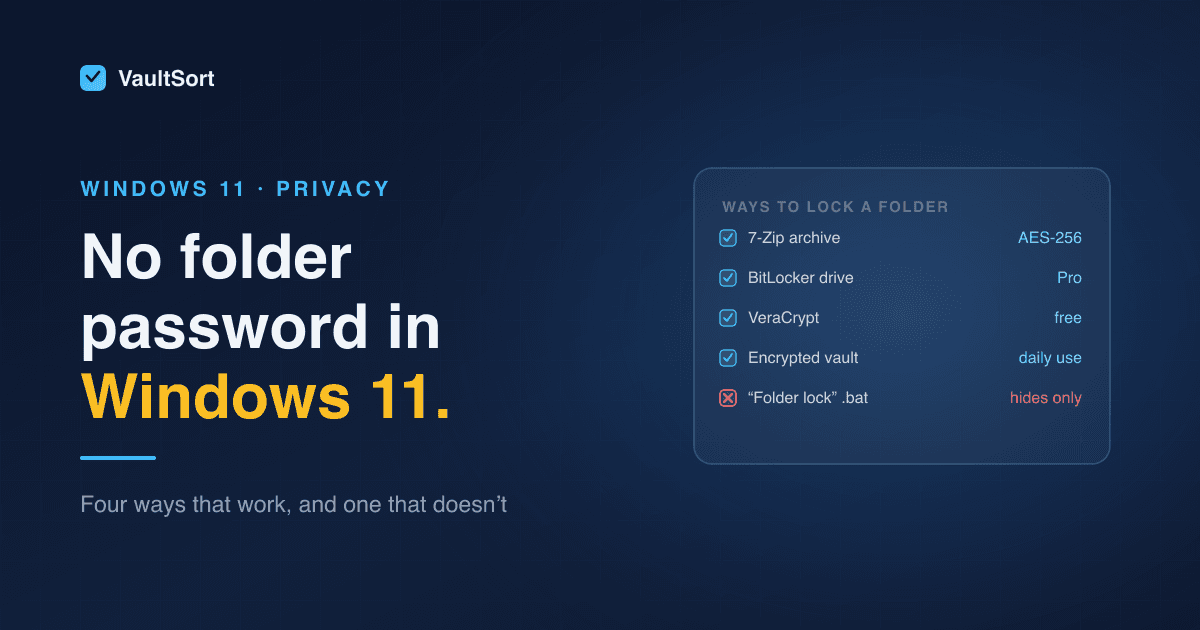
You right-click the folder, open Properties, and look for a password option. There isn't one. Windows 11 can encrypt a whole drive, and on some editions it can encrypt files for your account. But it has no built-in way to put a password on a single folder.
So you need a workaround. Some work well, one is popular and useless, and which one fits depends on your edition of Windows and on what you're protecting against.
Quick Comparison
| Method | Windows edition | Asks for a password? | Good for |
|---|---|---|---|
| 7-Zip encrypted archive | Home and Pro | Yes | Sending or storing a folder you rarely change |
| EFS ("Encrypt contents") | Pro and above | No, tied to your login | Other accounts on the same PC |
| BitLocker virtual drive | Pro and above | Yes | A private drive letter you open when needed |
| VeraCrypt container | Home and Pro | Yes | The same, free and open source |
| An encrypted vault app | Home and Pro | Yes, or face or fingerprint | Files you work with every day |
| "Folder lock" batch file | Any | Yes, but meaninglessly | Nothing (see below) |
1. 7-Zip: An Encrypted Archive (Free, Works on Home)
The simplest real protection. 7-Zip is free and uses AES-256.
- Right-click the folder → Show more options → 7-Zip → Add to archive…
- Set Archive format to 7z.
- Under Encryption, enter a password and tick Encrypt file names. Without that box ticked, anyone can still list what's inside.
- Click OK, open the archive once to check the password works, then delete the original folder.
The catch: an archive is a snapshot, not a folder. To edit a file you extract it, change it, and re-archive. Extracting leaves an unencrypted copy wherever you put it. And deleting the original only moves it to the Recycle Bin. Even emptying the bin leaves the data recoverable until it's overwritten; that's what secure deletion is for.
2. EFS: "Encrypt Contents to Secure Data" (Pro Only, No Password)
On Windows 11 Pro, Enterprise and Education: right-click the folder → Properties → Advanced → Encrypt contents to secure data. On Home the option is greyed out.
It's real encryption, but it never asks for a password. EFS ties the files to your Windows account: anyone who signs in as you, or reaches your unlocked desktop, opens them normally. What it stops is other accounts on the same PC, and someone who pulls the drive out.
Back up the encryption certificate when Windows prompts you. If the account or the PC is lost without it, the files are gone.
3. A BitLocker-Encrypted Virtual Drive (Pro Only)
BitLocker normally encrypts whole drives, but you can give it a small private drive of its own:
- Open Disk Management → Action → Create VHD, choose a location and a size.
- Initialize the new disk, create a volume, and format it.
- Right-click the new drive in File Explorer → Turn on BitLocker → Use a password to unlock the drive.
- Save the recovery key somewhere other than this PC.
You get a drive letter that's locked until you enter the password. It behaves like any other drive, so you can edit files in place. It needs Pro to set up. For USB sticks, BitLocker To Go does the same thing for a whole removable drive.
4. VeraCrypt: A Free Encrypted Container (Home and Pro)
VeraCrypt is free and open source. It creates an encrypted container file that you mount with a password, and it then appears as a drive letter. Same idea as the BitLocker drive, but it works on Windows Home and the container also opens on Mac and Linux.
The trade-off is friction. You mount and dismount by hand, and while the container is mounted, anything on the PC can read it. People who forget to dismount have a password-protected folder that's open most of the day.
5. An Encrypted Vault for Files You Use Every Day
The methods above are fine for things you open once a month. They're awkward for a folder you work in daily, which is where most people give up and leave files unprotected.
That's the gap the Vault in VaultSort fills. It's an encrypted place on your own disk for files, folders and notes:
- Opens the way you choose: a password, Windows Hello (face, fingerprint or PIN), or a security key like a YubiKey. You can set up several, and any one opens it.
- Locks itself when the PC sleeps, the screen locks, or it's been idle.
- Every file gets its own AES-256-GCM key. Nothing is uploaded and there's no account.
- Your files never depend on the licence. A licence is needed to create a Vault and add to it; unlocking, reading and exporting never need one.
For single files rather than a whole folder, VaultSort can also encrypt files with Windows Hello. The file stays encrypted when it's copied, emailed or backed up.
The Trick That Doesn't Work: The "Folder Lock" Batch File
Search for this topic and you'll find a script you paste into Notepad, save as locker.bat, and run. It asks for a password and makes the folder vanish. It looks like it works.
It doesn't encrypt anything. It renames the folder and marks it hidden and protected. The password sits in plain text inside the .bat file. Anyone who turns on Show hidden files, opens the folder from a command prompt, or opens the script in Notepad can get in. The same goes for simply ticking Hidden in the folder's Properties.
Treat anything that "hides" a folder as hiding, not protecting.
Which One Should You Use?
- Sending a folder to someone, or archiving it: 7-Zip, with the password shared some other way.
- Other people use the same Windows account: EFS won't help. Use a container or a vault with its own password.
- Files you open every day: a vault or a BitLocker drive, so protection doesn't depend on you remembering to re-lock.
- A lost or stolen laptop: turn on BitLocker or Device Encryption for the whole drive as well. Folder protection and drive encryption solve different problems, and you want both.
Whichever you choose, plan the way back in before you need it. Save the recovery key or code somewhere other than the PC it unlocks. A forgotten password on a well-encrypted folder is meant to be unrecoverable.
VaultSort is available for Windows 10 and 11 and for Mac. Download it here. On a Mac instead? See how to password protect a folder on Mac.