You need to black out a name, an account number or a signature before sending a PDF. Acrobat Pro is the tool everyone mentions, but it's a subscription you may not want for one document.
On a Mac you have a free option already installed: Preview has a real redaction tool. It's important to know what it does, what it doesn't, and how to check the result. A redaction that only looks right is worse than none, because you'll send it with confidence.
The Mistake to Avoid First: Drawing a Black Box
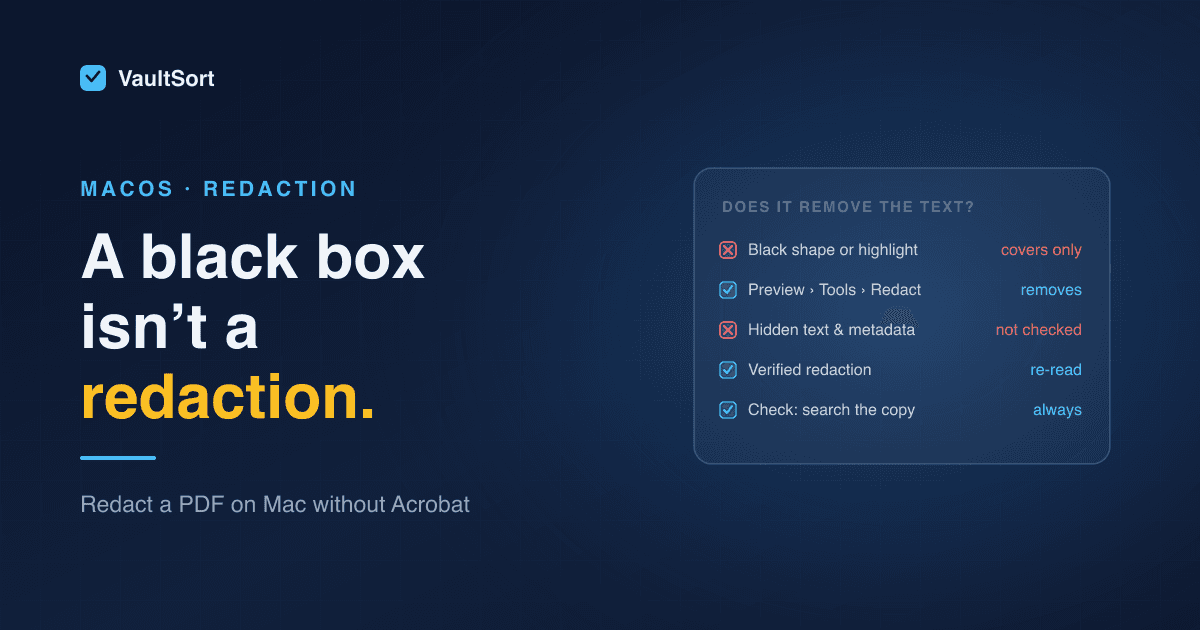
The most common redaction failure is drawing a black rectangle over text with a shape, highlighter or annotation tool. On screen it looks redacted. In the file, the text is still there underneath. Anyone can select it, copy it, or remove the box.
Preview even warns you if you try. Shapes and highlights are annotations that sit on top of the page. Redaction has to remove the content.
How to Redact a PDF in Preview
Preview gained its Redact tool in macOS 11 Big Sur, so any Mac that runs a current version has it.
- Make a copy of the PDF first. Redaction can't be undone once you save.
- Open the copy in Preview.
- Choose Tools → Redact (or click the Markup button, then the Redact button).
- Drag across the text you want to remove. It turns into a black bar with a hatched pattern.
- Repeat for every occurrence, on every page.
- Save. The marked content is removed from the file when it's saved, not just covered.
Where Preview Falls Short
For a quick, simple document, Preview is fine. For anything that matters, know its limits:
- It's entirely manual. There's no "find every instance of this account number and redact all of them". Search with Edit → Find, then redact each hit by hand, and it's easy to miss one on page 14.
- It only removes what you mark. In a test by Eclectic Light, text that was invisible on the page, or ran off its edge, survived and could be recovered. Real PDFs can carry content you can't see: hidden layers, form field values, comments, attachments and document metadata.
- It doesn't check its own work. Nothing tells you whether the saved file still contains the text you meant to remove.
How to Check a Redaction Actually Worked
Whatever tool you use, check the saved copy before you send it:
- Open the redacted file fresh, not the window you were editing in.
- Press ⌘F and search for a word or number you redacted. It should not be found.
- Press ⌘A to select all, copy, and paste into a plain text editor (TextEdit in plain-text mode). Read what comes out.
- Check Tools → Show Inspector for the title, author and keywords. Those can name people too.
- For scanned pages, zoom in on each redacted area to make sure the bar fully covers it.
If a search finds the text, or it shows up when pasted, the redaction failed. Don't send that file.
When the Document Matters: Redaction That Verifies Itself
Preview is a reasonable free tool for simple cases. For legal, financial, medical or HR documents, where a missed name is a real problem, you want a tool that finds what to redact, removes every copy, and proves it did.
That's what VaultSort's PDF redaction is built for, on Mac and Windows:
- Removes the text itself, plus the letter shapes in the embedded font and other copies of it in the file. Metadata, bookmarks, comments, form fields and attachments are removed too.
- Suggests what to redact: card numbers, account numbers, Social Security numbers, emails, phone numbers and dates of birth, with check-digit validation where numbers have one. Nothing is applied until you approve it.
- Verifies before saving. It renders every changed page and compares it with the original, then a second, independent PDF reader re-reads the result. If anything survives, the file isn't saved.
- Handles scans and photos using the text recognition built into macOS, on your computer. Also works on images and Word documents.
- Keeps your original untouched, writes a report of what was removed, uploads nothing and needs no account.
Every copy of VaultSort includes 3 free redactions. Unlimited redaction comes with the paid licence ($24.99 once, up to six Macs or PCs). For the background on why redactions fail, see how to redact a PDF properly.
Quick Answers
Can I redact a PDF on Mac for free? Yes. Use Preview's Tools → Redact on macOS 11 or later, then check the result with the steps above.
Does drawing a black box redact a PDF? No. The text stays in the file under the box.
Can redaction be undone? Not in the saved file, which is why you redact a copy and keep the original somewhere safe.
Redacting on Windows too? VaultSort's redaction works the same on both. Download VaultSort and try your 3 free redactions.