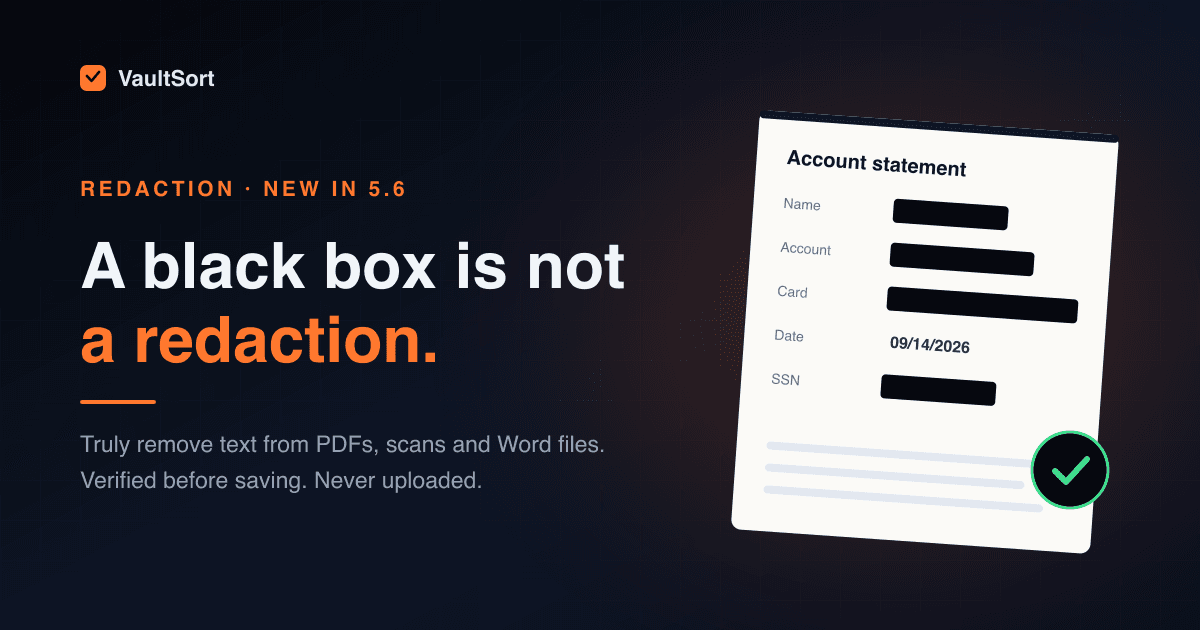
title: "How to Redact a PDF Properly on Mac and Windows (Why a Black Box Isn't Enough)" date: "2026-10-02" excerpt: "A black rectangle over text is not a redaction: the words are still in the file. Here's how to truly redact PDFs, scans, photos and Word documents on your own computer, verified before saving, for a one-time price." coverImage: "/images/blog/how-to-redact-a-pdf-properly.png" categories: ["Redaction", "PDF", "Privacy", "Security", "Product Update", "macOS", "Windows"]
Every few months, a "redacted" document makes the news for the wrong reason. A court filing, a government report or a company disclosure goes out with names and numbers hidden under neat black bars, and within hours someone has copied the text out from underneath them.
Nobody in those stories was careless about seeing the information. They were wrong about where it lived. A PDF is not a picture of a page. It is text, fonts, metadata and drawing instructions, and a black box is just one more drawing instruction placed on top.
This guide explains how to redact a PDF properly, what a real redaction has to remove, and how to do it on a Mac or a Windows PC with VaultSort 5.6's new Redact a Document, without uploading the file anywhere.
Why a black box isn't a redaction
Try this with any PDF you've "redacted" by drawing shapes, or by highlighting text in black:
- Open it and press ⌘A / Ctrl+A to select everything.
- Copy, and paste into a text editor.
If the hidden words appear, the document was never redacted. It was decorated. The same text is usually reachable in other ways too:
- Search. ⌘F finds words that sit under a box.
- Accessibility text. Screen readers read the tagged text, not the picture.
- Metadata. The title, author and subject fields, and the XMP packet, often repeat a name or case number.
- Bookmarks, comments and form fields. A form field can hold the value you covered, and its default value can hold it again.
- The font itself. Embedded fonts carry the shapes of the letters that were used. Remove the text but keep the glyphs, and the font can still give away what was there.
- Scanned pages. A scan whose OCR layer was never touched still has the hidden words in the invisible text layer.
A real redaction has to remove the information from all of those places, and leave a page that still looks right.
What a proper redaction does
A trustworthy redaction tool needs to do four things:
- Remove the content. Delete the characters, images and vector drawing under the box, and replace them with an opaque mark.
- Clean the rest of the file. Strip the document metadata, attachments and scripts, and every bookmark, comment and form field that repeats the text.
- Handle what it can't edit safely. Some pages, such as unusual fonts, text drawn as outlines or transparency effects, can't be edited precisely. The safe answer is to turn those pages into an image of the original, with the boxes painted into the pixels. Leaving them half-edited is not safe.
- Prove it worked. Don't take the editor's word for it. Re-open the result with a different reader and look for every marked term.
Most tools stop after step 1 or 2. Step 4 is where VaultSort is different.
How to redact a PDF with VaultSort
Redact a Document is part of VaultSort 5.6 on Mac and Windows. Every copy includes 3 free redactions, so you can try it on a real document before deciding.
1. Open the document
Use Protect → Redact a Document in VaultSort, or right-click a file in Finder or File Explorer and choose Redact with VaultSort…. Password-protected PDFs work too: VaultSort asks for the password, and the redacted copy is saved without it.
2. Mark what to remove
You can mark text in three ways, and use them together:
- Draw boxes over anything on the page: text, a signature or a photo.
- Search for a word, name or number, then press Redact all to mark every occurrence on every page. Matches in bookmarks, comments and form fields are removed too.
- Use suggestions. VaultSort scans the document for card numbers, IBANs, account and policy numbers, Social Security numbers, email addresses, phone numbers, dates of birth and credentials such as API keys and passwords. Numbers with check digits are validated, so a random 16-digit string isn't flagged as a card. Nothing is applied automatically: you review the list and add what you want.
If you've set up on-device AI, suggestions can also include names, addresses and organisations, found by Apple Intelligence or a local Ollama model. Cloud models are deliberately not used for this. A document you're redacting is, by definition, one you don't want to send anywhere.
3. Choose how safe
For most documents, the default is right: text is edited out, and any page that can't be edited precisely is turned into an image automatically.
Turn on Maximum safety for the most sensitive files. Every page becomes an image, so nothing hidden in the file's structure can survive. Where your computer can read the pages, the visible text is made searchable again with on-device OCR of the redacted page, so the result is still useful.
4. Save the redacted copy
Press Save redacted copy…. Before the file is written, VaultSort:
- renders every changed page and compares it with the original, so nothing outside your boxes moved or vanished;
- re-reads the result with a second, independent PDF parser and searches it for everything you marked.
If anything survives, the file is not saved, and you get an explanation instead of a document that only looks redacted. Your original is never modified.
Want a way back? You can save an optional restore file next to the redacted copy: the original document, encrypted with a password you choose. Send the redacted copy, keep the restore file, and you can always recover the original. Creating restore files is a Premium feature; opening one is free in every edition.
Scanned PDFs, photos and Word documents
Real paperwork isn't only typed PDFs, so Redact a Document handles the other formats you'll actually be sent:
- Scanned PDFs. Pages without a text layer are read with the text recognition built into macOS (Vision) and Windows, on your computer. Search, Redact all and suggestions work on scans, and on pictures inside typed PDFs.
- Photos and images (JPEG, PNG, HEIC, WebP, GIF and BMP). The marked pixels are painted black and the image is re-encoded from pixels alone. EXIF data, GPS location, camera details and embedded thumbnails do not come along.
- Word documents (.docx). Marked text is replaced in the document itself, even when Word has split a word across several formatting runs. Tracked changes are accepted, with deleted text dropped. Comments, document properties, the preview thumbnail and embedded objects are removed. If anything VaultSort can't account for is left in the file, it refuses to save rather than guessing.
Who needs to redact documents?
More people than you'd think. If you've ever sent a document and thought "they don't need to see that part", this is for you.
| Who | What they redact |
|---|---|
| Lawyers and paralegals | Court filings, exhibits and discovery productions: client names, account numbers, minors' details |
| Therapists, clinics and practice managers | Records, letters and insurance paperwork sent to third parties |
| HR and recruiting | Investigation files, references, payroll and benefits documents |
| Accountants and tax preparers | Returns, W-2s and bank statements: SSNs, EINs, account numbers |
| Real estate agents and mortgage brokers | Pay stubs, bank statements and IDs for applications |
| Insurance adjusters and brokers | Claims files, policies and reports |
| Journalists and researchers | Source documents published without exposing the people in them |
| Government and FOIA officers | Records released to the public with exempt material removed |
| Schools and universities | Student records, reports and correspondence |
| Landlords and property managers | Rental applications, leases and ledgers |
| Everyone | A bank statement for a visa, an ID for a rental, a bill for a dispute |
A note for regulated work. Redaction is a tool, not a compliance programme. VaultSort removes what you mark and verifies it. Deciding what must be removed (for example, the identifiers HIPAA or GDPR care about in your situation) is still your call, or your compliance team's.
How VaultSort compares
There are three common ways to redact a PDF today. Here's how they compare, by category, since features vary by product and plan.
| VaultSort | Subscription PDF editors | Free online redaction sites | |
|---|---|---|---|
| What you pay | One payment, yours to keep | A monthly or yearly subscription | "Free", but you upload the document |
| Document stays on your computer | Always | Usually | No |
| Removes the text, not just covers it | Always | Yes, with the right tool | Varies |
| Independent check before saving | Every redaction | Rarely | Rarely |
| Check-digit-validated card, IBAN and SSN suggestions | Yes | Pattern search | Varies |
| Scans (on-device OCR), photos and Word files | Yes | PDF-focused | Varies |
| Optional encrypted restore file | Yes | No | No |
More affordable
Redaction usually sits in the top tier of professional PDF editors, sold by subscription. Over a few years you pay for it again and again, per person. VaultSort is $24.99 once: a lifetime licence for up to 6 Macs or PCs, with no subscription. That licence also includes everything else VaultSort does: file organization, duplicate cleanup, secure deletion, and the hardware-key encrypted Vault.
More private
Free online redaction sites have an obvious problem: to redact a document, you upload it, unredacted, to someone else's server. That is the opposite of what redaction is for. VaultSort runs the whole pipeline on your own computer: the redaction itself, the OCR for scans and the AI suggestions. There's no account, nothing is uploaded, and it works offline.
More trustworthy
Most redaction failures aren't failures of the tool. They're failures nobody noticed. VaultSort's verification step turns "I think it's redacted" into "a second reader looked for every marked term and found nothing", and if that's not true, you don't get a file at all.
Quick checklist before you send a redacted document
- Redact from the original file, not a printout you scanned back in.
- Use Redact all for every name and number: the one you miss is always on page 14.
- Run suggestions to catch card, account and ID numbers you didn't search for.
- Turn on Maximum safety for the most sensitive documents.
- Send the redacted copy, and keep the original (or the encrypted restore file) somewhere safe.
Redact your next document properly
True removal, verified before saving, on your own computer. 3 redactions free, then one payment for life on up to 6 Macs or PCs.
FAQ
Can redacted text in a PDF be recovered? If the "redaction" was a black box drawn over the text, usually yes: copy and paste is often enough. If the text was actually removed, as VaultSort does, there is nothing left under the box to recover. That's why VaultSort checks the saved result for every marked term before writing the file.
How do I redact a PDF for free? Every copy of VaultSort includes 3 free redactions, on Mac and Windows. Free online tools exist, but they require uploading the unredacted document to a server.
Can I redact a PDF on a Mac without Adobe Acrobat? Yes. VaultSort redacts PDFs on Apple silicon Macs, and on Windows 10 and 11, with no subscription and no Adobe account.
Can I redact a scanned PDF? Yes. VaultSort reads scanned pages with the text recognition built into macOS and Windows, on your computer, so you can search and redact them like typed text.
Is my document uploaded? No. Nothing leaves your computer: not the document, not the text, not the suggestions.
Can I undo a redaction? Not in the redacted copy; that's the point. If you might need the original later, save an optional encrypted restore file when you redact.
Ready to try it? See Redact a Document in 3D, or download VaultSort and redact your first three documents free.