title: "Smart Categorize: AI File Organization for Mac That Actually Reads Your Files (and Never Sends Them Anywhere)" date: "2026-05-09" excerpt: "Smart Categorize is VaultSort's on-device AI that reads the inside of your files and sorts them into folders that mean something — Receipts, Tax Returns, Recipes, whatever your library actually contains. No cloud, no API key, no rules to write. This is the new standard for Mac file organization." coverImage: "/images/blog/smart-categorize-ai.png" categories: ["AI", "Organization", "Productivity", "macOS", "Smart Categorize", "Product Update"]
Smart Categorize: AI File Organization for Mac That Actually Reads Your Files (and Never Sends Them Anywhere)
Every Mac file organizer ever built has the same blind spot: it can only see file names.
Scan_001.pdf. IMG_2843.jpg. Untitled-3.docx. New Document (4).pdf. They're all the same to a rules engine. To a human, one is a tax return, one is your daughter's school photo, one is a contract draft, and one is a takeout menu you forgot to delete eighteen months ago.
That gap — between what a file is named and what a file actually is — is the reason your Downloads folder is still a wasteland after every "best Mac cleaner" you've ever tried.
Smart Categorize closes that gap.
It's a new feature inside VaultSort's Advanced Organize that runs an AI model directly on your Mac. It reads the contents of your files, groups them into meaningful categories like Receipts, Tax Returns, Recipes, Lease Agreements, or whatever taxonomy your particular library naturally has, and then sorts them into folders for you.
No cloud upload. No API key. No subscription. No rules to write. No file ever leaves your machine.
This is, we believe, a new standard for how Mac file organization should work — and the first one good enough that we're willing to put it in front of the most cautious users we have.
Why Filename-Based Organization Was Always Going to Fail
Take a quick inventory of your Documents folder right now. How many of these do you have?
Scan-2025-04-12.pdfuntitled folder/Document (3).docxScreen Shot 2024-09-08 at 11.23.41 PM.pngfinal_v2_REAL_final.docxEmail-Attachment-Original.pdf
A traditional rules-based file organizer — Hazel, our own Visual Rule Builder, Finder smart folders, every shell script you've ever copied off Stack Overflow — has to work from the outside of those files: extension, size, date, regex on the filename. That works perfectly for *.pdf → /Documents/PDFs/. It tells you nothing about whether Scan-2025-04-12.pdf is a receipt, a medical record, a property deed, or your kid's homework.
So you end up with one of three bad options:
- One giant "PDFs" folder. Solves nothing. You still have to open each file to find anything.
- Hand-written rules per category ("if filename contains 'invoice' move to Invoices…"). Brittle, endless, and the files that don't match your patterns just silently pile up in
Other/. - You give up and live with the mess. Which is what almost everyone does.
We hit this wall ourselves. We built one of the most powerful rule engines on the Mac, and it still couldn't sort the contents of a human Downloads folder. Because filenames don't carry enough signal.
The only thing that does is content.
What Smart Categorize Actually Does
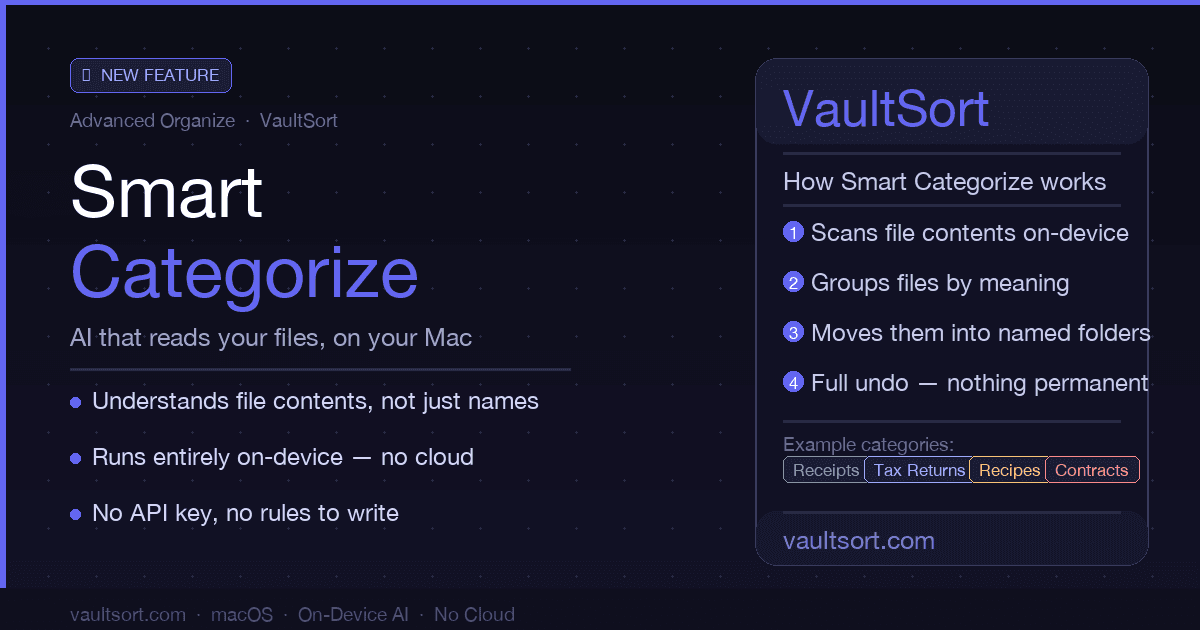
Smart Categorize is a four-step pipeline that runs entirely on your Mac:
- Sample. You point it at one or more folders. It walks them, finds the files it can read text from (PDFs, Word docs, plain text, code, markdown — anything VaultSort can extract a text payload from), and samples a representative slice.
- Embed. It runs each sampled file through a small embedding model that lives on your disk. The model converts the text into a high-dimensional vector — a mathematical fingerprint of meaning. Two W-2 forms will have nearly identical fingerprints. A W-2 and a takeout menu will not.
- Cluster. It groups files whose fingerprints are close together. Each cluster becomes a category proposal — a few example files plus a short list of keywords the model thinks describe them.
- Propose. It hands you a review screen. You see proposed categories like Receipts, Tax Returns, Lease Agreements, Recipes, Resumes. You accept the ones that look right, edit names and keywords, drop the noise, and save the result as a reusable Smart Category Set.
That category set is now a first-class building block in VaultSort. You can:
- Run it as a Smart Categorize Job that sorts a folder into per-category subfolders.
- Drop it into the Visual Rule Builder as a
semanticCategorypredicate, mixed with date, size, type, and any other rule you already use. - Re-run it next month against the new files that have arrived since.
The reason this actually works — and isn't another half-baked AI gimmick — is that the model isn't classifying into someone else's preset taxonomy. It's deriving the taxonomy from your own files. Your Receipts folder is the receipts you actually receive. Your Recipes folder is the recipes you actually saved. The categories fit your library because they came from your library.
Privacy: This Is the Part We Care About Most
VaultSort is, first and last, a security and privacy tool. We will not ship a feature that betrays that.
So Smart Categorize works the way every AI file organization tool should work but almost none do:
- The model runs on your Mac. Not on our servers. Not on a partner's servers. Not in a "secure enclave" somewhere we'd have to ask you to trust. On your CPU and Apple Silicon Neural Engine, locally, in the same sandboxed app you already trust to scrub your free space.
- Your file contents never leave your machine. Not the text we extract. Not the embeddings we compute. Not the filenames. Nothing.
- No API key. No account. No usage metering. Smart Categorize doesn't phone home to validate your subscription per file or per run. There's nothing to phone home about.
- You can delete the model whenever you want. Settings → AI → Smart Categorize → Remove. The disk space comes back. The feature stops working until you reinstall it. That's the entire kill switch.
This is a hard architectural boundary, not a marketing claim. There is no Smart Categorize backend. We could not, even if asked under subpoena, hand over what your Smart Categorize library contains. We don't have it.
If you've read our Why Storage Type Matters for Mac Security post, this is the same philosophy applied to AI: you keep your data. We just give you better tools to organize it.
How Smart Categorize Compares to Everything Else
| Smart Categorize | Filename rules (Hazel, Finder smart folders) | Cloud AI organizers (Google, Dropbox, etc.) | |
|---|---|---|---|
| Reads file contents | ✅ Yes | ❌ No, filename only | ✅ Yes |
| Runs on-device | ✅ Yes | ✅ Yes | ❌ No, files uploaded |
| Categories derived from your files | ✅ Yes | ❌ You write the rules | ⚠️ Fixed taxonomy |
| Works offline | ✅ Yes | ✅ Yes | ❌ No |
| Requires API key or account | ❌ No | ❌ No | ✅ Yes |
| Per-file cost | $0 | $0 | Variable |
| Sees your private files | ❌ No | ❌ No | ✅ Yes |
Filename-based tools are honest, fast, and private — but blind to content. Cloud AI tools see content but require trust we wouldn't ask anyone to give. Smart Categorize is the first option that's both content-aware and private.
A Walkthrough: From Messy Documents Folder to Sorted in Five Minutes
Here's the flow end to end.
1. Open Advanced Organize and click Smart Categorize Job
The Advanced Organize page now has two clearly-labeled buttons in its header:
- Manage Categories — for editing existing Smart Category Sets (like a recipe book of taxonomies you've built).
- Smart Categorize Job — for creating a new job that will sort files using a category set, deriving a fresh one from your folder if you don't have one yet.
Click Smart Categorize Job.
2. Pick the source folder(s)
Drop in ~/Documents, or ~/Downloads, or that 23,000-file Desktop you've been avoiding. You can point Smart Categorize at one folder or several at once — it'll sample across all of them.
3. Click Suggest Categories from these folders
Smart Categorize walks the folder, picks a representative sample (it caps at a few hundred files so even a giant Desktop completes in seconds), extracts text, and runs the embedding model. Progress is shown live.
4. Review the proposed categories
This is the only step that needs your attention. You'll see something like:
- Tax Returns — 12 files (
W-2-2023.pdf,1099-DIV.pdf, …) keywords: tax, IRS, deduction - Receipts — 47 files (
Amazon-order.pdf,Uber-receipt.pdf, …) keywords: receipt, total, payment - Lease Agreements — 4 files keywords: tenant, landlord, premises
- Recipes — 18 files keywords: cup, tablespoon, oven
- Resumes — 6 files keywords: experience, education, references
- (uncategorized) — 31 files
Uncheck the categories you don't want. Rename anything that's off (the model might suggest Financial Statements when you'd rather call them Bank Statements). Edit keywords if you want tighter matching. Type a name for the whole set — My Personal Library, Client Contracts, whatever fits. Hit Use these categories.
5. Save the job
You're now on the Save step. Pick the destination folder (where the per-category subfolders will be created), give the job a name (Smart Categorize will suggest something sensible), and save.
6. Dry-run, review, execute
Like every other VaultSort job, Smart Categorize gives you a full dry-run before anything moves. You see exactly which files will land in which folder. If a file was misclassified, the dry-run preview is where you catch it. Execute when you're satisfied.
That's the entire workflow. Five steps. Most users finish their first run in under five minutes.
Smart Categorize Inside the Visual Rule Builder
Smart Categorize is also exposed as a predicate inside the Visual Rule Builder. That means you can write rules like:
If file is in semantic category Receipts AND date is older than 1 year → move to Archive/Receipts/{year}/.
Or:
If file is in semantic category Tax Returns → also tag with
Finder:TaxAND copy to encrypted vault.
This is the part that genuinely changes what's possible on a Mac. You can now combine what a file is (semantic category) with what a file looks like from the outside (date, size, type, name pattern) in a single rule. No other Mac file automation tool can do that today.
Pair it with our AI Job Builder and you can describe an entire content-aware workflow in one English sentence and have it generated, reviewed, and ready to run in under a minute.
What Smart Categorize Is Not
We try to be honest about feature limits. Smart Categorize is not magic, and there are things it deliberately doesn't do:
- It doesn't read images, audio, or video. The current model classifies files with a text payload. Photos, music, and movies are best handled by metadata-based rules in the Visual Rule Builder — date taken, camera model, duration, container format. We may add multimodal support in a future release, on-device, when we can do it without compromising the privacy story.
- It doesn't move files automatically. Like every VaultSort feature, Smart Categorize generates a job. You dry-run it. You execute it. Nothing happens to your files until you say so.
- It is not a chatbot. No prompts, no conversation. Point at a folder, get categories, refine, run. Single-shot.
- It is not perfect. Some files will end up uncategorized. Some clusters will need merging or splitting. The review step exists because human judgment still beats the model on edge cases — and you stay in control of the taxonomy.
If your library is genuinely small or genuinely uniform, you might not need Smart Categorize at all — a couple of filename rules will do. Smart Categorize earns its keep at the scale where filename rules give up: a few hundred mixed files and upward.
Who Should Use Smart Categorize
If you have a Documents folder you're embarrassed about. This is the canonical use case. Point Smart Categorize at it, accept the categories that look right, dry-run, execute. You'll have years of back-paperwork sorted into folders that mean something in one afternoon.
If you're a freelancer, contractor, or solo professional managing client files. Contracts, Invoices, Statements of Work, Deliverables — Smart Categorize derives the taxonomy from your own files instead of asking you to guess what categories you'll need.
If you handle sensitive documents — medical, legal, financial — and you'd never upload them to a cloud "AI organizer" but you'd love the sorting power. This was the user we built for first. See our HIPAA-compliance and GDPR posts for the full story on why on-device matters here.
If you've tried Hazel or other Mac cleaners and hit the filename-blindness ceiling we described above. This is the feature that gets past it.
If you're a researcher, student, or writer with a folder of PDFs you've been meaning to sort by topic. Climate Policy, Machine Learning, Renaissance Art — Smart Categorize will find the topic clusters you'd have spent a weekend tagging by hand.
What This Signals About Where VaultSort Is Going
When we shipped AI Job Builder earlier this year, we said it was VaultSort's first AI-powered feature and that it wouldn't be the last. Smart Categorize is the second.
The pattern is going to look like this: AI applied where it genuinely reduces friction, run on-device whenever the model is small enough to do so responsibly, with the user in the driver's seat the whole way. We're not chasing AI hype; we're using AI to solve problems that filename-based tools fundamentally cannot.
Smart Categorize makes a category of file organization possible that didn't exist on the Mac before. That's the bar we want every AI feature we ship to clear.
Try Smart Categorize Today
Smart Categorize is available now in VaultSort for all Premium users.
To get started:
- Update VaultSort to the latest version
- Open Advanced Organize
- Click Smart Categorize Job and follow the wizard
- The on-device model installs the first time you use the feature (one-time download, runs entirely locally after that)
- Review the proposed categories, save your set, dry-run, execute
If you're on the free tier, upgrade to Premium to unlock Smart Categorize alongside every other premium feature — secure deletion, encryption, YubiKey integration, Space Saver, operation log, AI Job Builder, and more. One-time purchase, $24.99, lifetime license.
If you're already on Premium, update and try it on your Documents folder. If you've been avoiding that folder for a while — the way many of us avoid ours — there's a good chance Smart Categorize will surprise you.
We'd love to hear what categories it finds in your library. We've already heard from beta users whose libraries surfaced perfectly sensible Lease Agreements, Vet Records, Sheet Music, and Conference Talks clusters that no filename rule on Earth would have caught.
That's the new standard. That's Smart Categorize.
Smart Categorize runs entirely on your Mac. No cloud upload. No API key. No subscription tier inside the feature. Files never leave your device — not their contents, not their embeddings, not their names. Premium feature in VaultSort. One-time purchase, lifetime license.