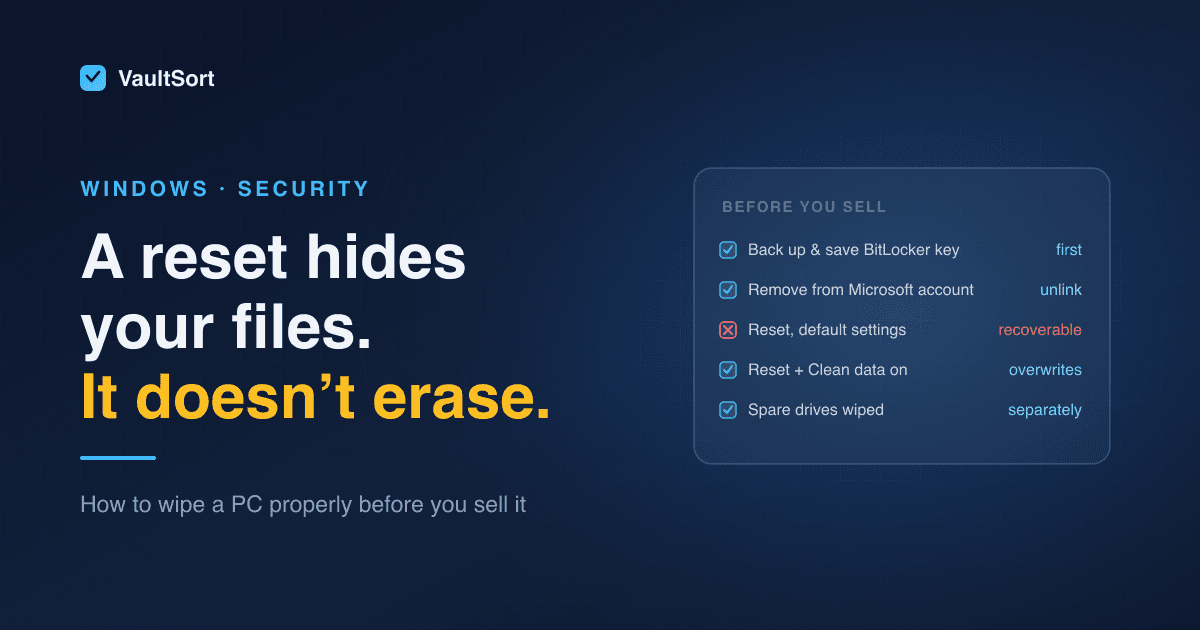
Selling an old laptop or passing a PC to someone else? The usual advice is "just reset it". That's half right. Windows' Reset this PC reinstalls Windows and removes your files from view, but with default settings it doesn't overwrite them. Free recovery software can often bring a surprising amount back.
The fix is a single setting, plus a few things to do before you reset that people usually remember too late.
Before You Wipe: Five Things to Do First
Do these while the PC still works and is still yours.
- Back up what you need. Copy files to an external drive or cloud storage, and check the backup opens on another machine. After a proper wipe, there's no getting anything back.
- Save your BitLocker recovery key, if the drive is encrypted (Settings → Privacy & security → Device encryption, or search "Manage BitLocker"). You won't need it for the new owner, but you might if something goes wrong mid-wipe.
- Sign out of apps that count devices. Microsoft 365, Adobe, Steam, iTunes, password managers and paid apps like VaultSort often limit how many machines a licence covers. Deactivate them now so the slot comes back to you.
- Remove the PC from your Microsoft account. Sign in at account.microsoft.com → Devices, and remove it. Turn off Find my device first. Otherwise the machine stays linked to your account after the reset.
- Unpair Bluetooth devices and remove any SIM, SD card or USB drives you want to keep.
The Wipe: Reset This PC, with "Clean Data" On
On Windows 11 (Windows 10 is nearly identical):
- Open Settings → System → Recovery.
- Next to Reset this PC, click Reset PC.
- Choose Remove everything. ("Keep my files" is for fixing a PC you're keeping.)
- Choose Cloud download or Local reinstall. Either is fine; cloud download gets a fresh copy of Windows if the local one is damaged.
- On Additional settings, click Change settings and turn Clean data on. This is the step that matters. Without it, the reset only removes files from Windows' view. With it, Windows overwrites the drive, so deleted files can't simply be recovered.
- If the PC has more than one drive, turn on Delete files from all drives too.
- Click Reset and leave the PC plugged in.
Expect it to take hours, not minutes. A normal reset is quick. With Clean data on, Windows writes over the whole drive, which on a large or slow drive can take most of a day. That's the point: it's doing the work.
When it finishes, the PC boots to the Windows setup screen. Stop there and switch it off. The new owner sets it up with their own account.
SSDs, Hard Drives and the Spare Drive in the Bay
- SSD (most laptops since about 2015). Reset with Clean data is a reasonable choice for an ordinary sale. Because of how SSDs spread writes around, no software overwrite can promise that every old block is gone. If the drive held anything truly sensitive, the strongest options are the manufacturer's secure erase tool (most SSD makers publish one) or keeping the drive and selling the PC without it. Our guide to securely erasing an SSD or USB drive on Windows explains why.
- Hard drive (spinning disk). Overwriting works well on these, so Clean data does the job.
- A second internal drive, or USB drives you're handing over. The reset only covers what you tell it to. Use Delete files from all drives, or erase those drives separately.
Why Not Just Format the Drive?
A quick format, or deleting files and emptying the Recycle Bin, only removes the index that points at your data. The data itself stays on the disk until something happens to overwrite it, and recovery tools read it directly. That's why "I deleted everything" and "the data is gone" are different statements.
Where VaultSort Fits
VaultSort for Windows handles the parts a reset doesn't:
- Disk Shred erases a whole secondary or external drive, for the USB stick or spare internal drive you're selling separately.
- Free-space overwrite and TRIM clean up after files you've already deleted, on a PC you're keeping.
- Secure deletion of individual files, for when you only want specific things gone.
These are in the paid licence. One thing VaultSort can't do, and no app can while Windows is running, is erase the drive Windows itself runs from. For selling the whole PC, the built-in Reset with Clean data is the right tool. VaultSort is for the drives and files around it.
Quick Checklist
- Backed up, and the backup opens elsewhere
- BitLocker recovery key saved
- Licences deactivated (Microsoft 365, Adobe, Steam, VaultSort…)
- Find my device off, PC removed from your Microsoft account
- Reset this PC → Remove everything → Clean data on
- Extra drives wiped or removed
- Stopped at the setup screen
Selling a drive on its own? See disk wipe software for Windows, or download VaultSort to try it free.