When someone leaves a small firm, the client files the firm worries about usually aren't in the practice-management system. That system has logins and an administrator. The worrying ones are on the laptop: the intake forms in Downloads, the scans on the desktop, the folder of a client's statements on a USB stick, and the encrypted archive only the departing person knows the password to.
This checklist is for practices of a few to a few dozen people, such as law firms, accountants, therapy practices and agencies, with no IT department. It covers what to do before, on and after someone's last day, and how to set things up so the next departure takes an afternoon instead of a week.
Not legal advice: what you must keep, for how long, and how you must dispose of it depends on your profession and where you practise. Check your own rules.
Before their last day
1. Find out where client files actually live
Ask, then look. On most work laptops, client documents gather in a few places:
- Downloads and the desktop: everything that arrived by email or from a portal.
- Documents: often a personal filing system nobody else understands.
- External drives and USB sticks.
- Personal cloud folders synced on a work machine (iCloud Drive, a personal Dropbox or Google Drive).
- Email: attachments saved nowhere else.
Doing this with the person, while they're still there to say what each folder is, takes far less time than reverse-engineering it afterwards.
2. Move what the firm must keep to where the firm keeps things
Anything the firm needs, whether for a client, for its records or for a retention obligation, should end up in the firm's own storage before the laptop is touched. The aim is that no client file exists only on the departing person's computer.
If the same document exists in five versions across Downloads and three project folders, settle on the right one now. A duplicate finder helps here, because it matches files by content, not by name.
3. Get the keys to anything encrypted
This is the step most firms miss, and the one that loses files permanently.
If the person encrypted anything, such as an encrypted folder, a password-protected PDF or zip, or a vault in an app, and the only way in is a password, security key or fingerprint that belongs to them, then when they leave, those files leave with them. Encryption that works properly can't be bypassed later, by you or by anyone you hire.
So, before the last day:
- Collect the passwords for any protected files the firm needs, or re-save those files without a password into firm storage.
- If they used a YubiKey or Touch ID to unlock anything, make sure there is another way in (a recovery code or a backup key) that the firm holds.
- Make sure the firm has the computer's own disk-encryption recovery key: FileVault on a Mac, BitLocker on Windows. Without it, a forgotten login can lock the whole drive.
4. Plan access removal
List what they can log in to: email, practice-management software, shared drives, the client portal, the password manager, phone and messaging apps, and the office Wi-Fi. Decide who takes over each mailbox and shared document, and transfer ownership of anything that would otherwise be deleted with their account.
On their last day
5. Turn off access, then collect devices
Disable their accounts at the end of the day, not the end of the month. Collect the laptop, chargers, external drives, USB sticks and security keys. If client email was on their phone, remove the work account from it.
6. Free up their software licences
Most professional software is licensed per person or per device. Release their seats so the next hire can use them, and so you aren't paying for an empty desk.
After they've left
7. Keep what you must, delete what you no longer need
With the firm's copies safe, go through what's left against your retention policy. Old client files that have passed their retention period are a liability, not an asset. Delete them deliberately rather than leaving them on a laptop in a cupboard. Write down what you kept, what you deleted and when.
8. Wipe the computer before it's reused, sold or recycled
Deleting their user account isn't enough. Before the laptop goes to the next person, or out of the building:
- Mac (Apple silicon or a T2 chip, macOS Monterey or later): choose System Settings > General > Transfer or Reset > Erase All Content and Settings. It removes all data, settings and apps and leaves a fresh macOS.
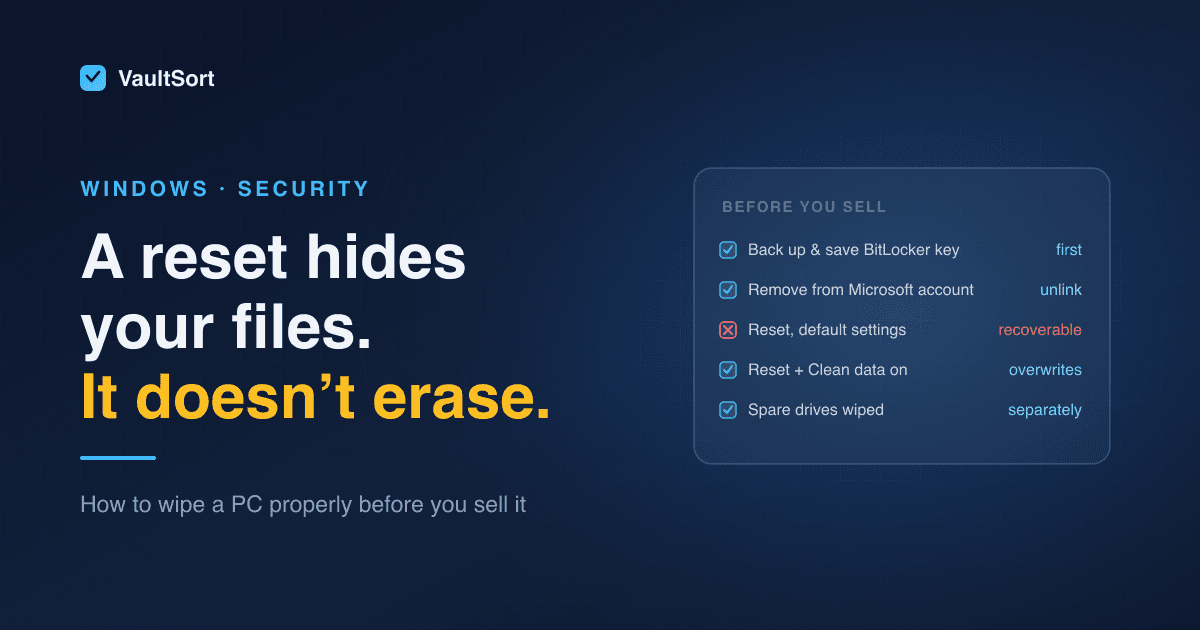
- Windows 11: choose Settings > System > Recovery > Reset PC > Remove everything, and turn on the option to clean the drive when it's offered. Microsoft notes that this is designed for consumers and doesn't meet government or industry data-erasure standards, so if your obligations name a standard, follow it. Have the BitLocker recovery key ready before you start.
For more detail, see how to wipe a Windows PC before selling it. For external drives and USB sticks, erase the whole drive rather than deleting files: on an SSD or flash drive, deleting a file doesn't reliably remove it. This guide explains why, and how to erase one properly.
9. Keep a short record
One page is enough: what was moved and where, who now holds which keys and recovery codes, which accounts were closed, which devices were wiped, and the dates. If a client or regulator ever asks, you'll have the answer.
Make the next departure easy
Most of the work above exists because files were scattered and keys belonged to one person. Fix those two things and the next departure is quick:
- One filing system, on every computer. If everyone's client files land in the same, predictable folders, you know where to look. Rules that sort Downloads automatically, the same on every machine, do most of this for you.
- The firm holds the recovery keys from day one. Record every computer's FileVault or BitLocker recovery key, and for anything else encrypted, make sure a recovery code or backup key is held by the firm, not only by the person who created it.
- Encrypt sensitive files where they live, so a laptop that goes missing before you get it back exposes nothing.
- Delete on a schedule, not in a panic when someone hands in their notice.
How VaultSort helps
VaultSort is a desktop app for Mac and Windows that does the file-handling parts of this checklist on each computer. It doesn't upload any of your files.
- Find and gather client files: Storage Analysis and Large Files show where space and files actually are, and the Duplicate Finder matches copies by content.
- One filing system everywhere: organization rules move files out of Downloads by name, date or the text inside them, and you can export a rule and import it on every computer in the office.
- Encryption with a firm-held way back in: a VaultSort Vault opens with Touch ID, Windows Hello or a YubiKey, and can also have a recovery code. Keep that code with the firm, and a departure never locks you out.
- Deliberate deletion: secure deletion uses the method that suits each drive and says plainly what it can't guarantee on an SSD; Disk Shred erases a whole external drive.
- Licences that move with people: with VaultSort Business, one key covers the office. Remove the licence from a departing person's computer and the seat is free for the next.
Running a practice? See how VaultSort fits therapists, lawyers and accountants, or start a 30-day free trial for your office.
Frequently asked questions
Is deleting their user account enough?
No. Their files usually stay on the disk, and anything they copied elsewhere (a USB stick, a personal cloud folder) isn't touched at all. Move what you need, then erase the computer before reuse.
What if they used their own laptop or phone for work?
You can't wipe a device you don't own. Ask them to hand over or delete client files and remove work accounts, and to confirm it in writing. For the future, a written policy on personal devices, and keeping client files in firm-controlled storage, avoids the problem. Get advice on your obligations if client data is involved.
We can't open an encrypted file they left behind. Can anyone recover it?
If the encryption is any good and nobody has the password, recovery code or key, no. That isn't a flaw; it's what encryption is for. It's why the firm should hold a way in to everything that's encrypted before anyone leaves.
How long should we keep a former employee's client files?
As long as your profession's retention rules require for the client records, which is the same whether or not the employee is still there. Files with no obligation to keep them should be deleted once they're no longer needed.