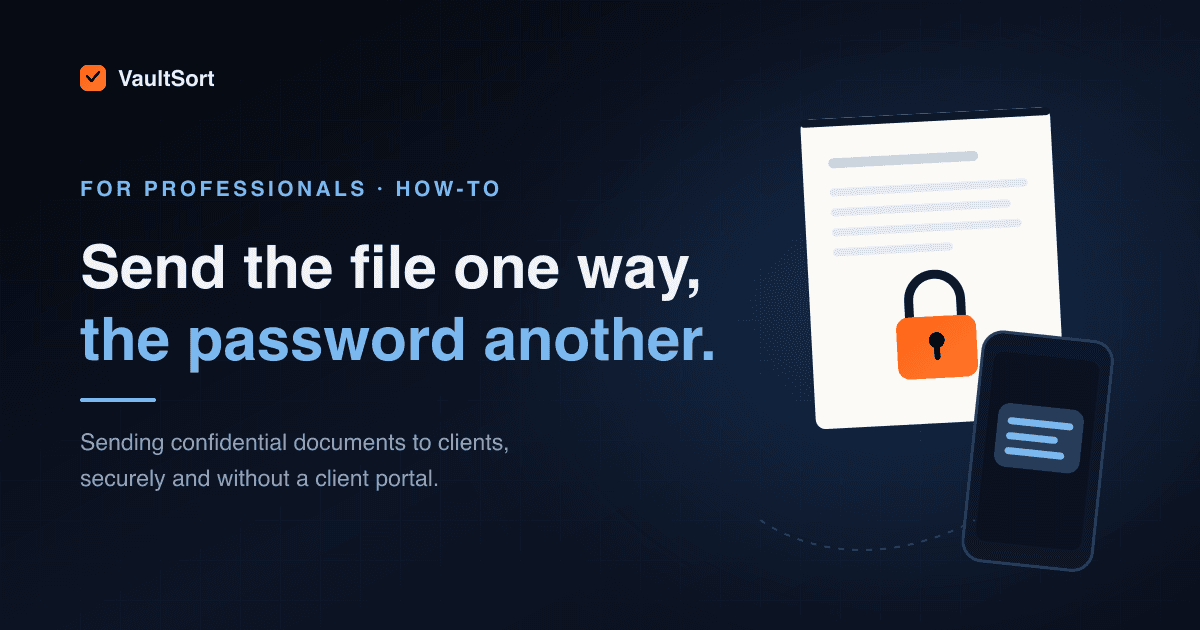
A therapist sends a letter to an insurer. An accountant sends a draft return. A lawyer sends a settlement agreement. Each time, the easiest thing to do is attach the file to an email and press send — and each time, a copy of that file now sits in two mailboxes, on two mail servers, and on every device that syncs either account.
Most small practices don't have a client portal, and most clients don't want to create another login to read one document. This guide covers how to send a confidential document securely with what you already have, which option fits which situation, and the handful of mistakes that quietly undo all of it.
Start by sending less
The safest information is the information you didn't send. Before protecting a file, check whether the recipient needs all of it:
- An insurer may need dates of service, not session notes.
- A lender may need the last page of a return, not every schedule.
- Opposing counsel may need a contract with the client's account numbers removed.
If part of a document has to go, redact it properly. A black box drawn over text in a PDF hides it on screen and leaves it in the file, where anyone can copy it out. How to redact a PDF properly explains what a real redaction removes and how to check yours worked.
The four ways to send a file securely
| Option | What the client needs | Good for | Watch out for |
|---|---|---|---|
| Password-protected PDF | Any PDF reader | One PDF | Only protects PDFs; strength depends on the password |
| Encrypted ZIP | An app that opens AES zips | Several files, any type | Built-in zip tools often can't open it; file names may stay visible |
| Encrypted email | Varies by service | Firms already on a plan that includes it | Often requires the client to sign in or click through a portal |
| Client portal | An account and a login | Regular, two-way exchange | Cost, setup, and clients who never log in |
For most one-off sends from a small practice, a password-protected PDF is the right default: every client can open it, on any device, with nothing to install.
How to password-protect a PDF
On a Mac, with Preview
- Open the PDF in Preview.
- Choose File > Export, and give the copy a new name so the original stays unprotected.
- Click Permissions.
- Select Require Password To Open Document, then enter and confirm a password.
- Enter an Owner Password too (it can be different).
- Click Apply, then Save.
On Windows, from Word
Windows has no built-in way to put a password on a PDF, but Microsoft Word can when it creates one. Choose File > Save As, pick PDF, click Options, and tick Encrypt the document with a password.
To protect the Word document itself instead, choose File > Info > Protect Document > Encrypt with Password. On a Mac, Word's equivalent is Review > Protect > Protect Document.
The password is the protection
Every one of these methods is exactly as strong as its password. That is where most secure sending goes wrong.
Never send the password in the same email as the file. If the email is misdirected, forwarded or read by the wrong person, they now have both. Send the password by text message, say it on a phone call, or agree it in person.
Use a long passphrase, not a clever password. Several random words — harbor-velvet-tundra-oasis-pickle — are far harder to guess than Smith2026!, and far easier to read out over the phone. Aim for at least 12 characters, and more is better.
Don't reuse one password for every client. If one client's password leaks, every file you've ever sent with it is exposed. A new passphrase per send costs nothing.
Don't use the client's date of birth, account number or postcode. Anyone who has the file probably knows those too.
Common mistakes
- Weak zip encryption. Older "ZipCrypto" encryption is easy to break. If you use a zip, choose AES-256 — and remember that the recipient will probably need an app like 7-Zip or The Unarchiver to open it, because the zip tools built into Windows and macOS often can't.
- File names in the clear. An ordinary encrypted zip hides what's in the files, not what they're called.
Smith divorce settlement.pdfsays plenty on its own. - Confusing "confidential" with "encrypted". Some mail services offer a confidential mode that stops forwarding or sets an expiry date. That helps with accidental sharing, but it isn't the same as encrypting the file, and the recipient can still photograph the screen.
- Thinking you can take it back. Once a protected file has been sent and opened, the recipient has an ordinary copy. Encryption protects a file on its way and while it sits in a mailbox — not after the right person opens it.
- Huge attachments. Many mail services refuse attachments over 20 to 25 MB. Split large sends, or use a portal for them.
Doing it in one step with VaultSort
VaultSort's Send Securely, new in VaultSort 5.7, does all of the above in one step, on your own computer, with no server and no account on either side.
- One PDF becomes a password-protected PDF using standard AES-256 PDF encryption, so it opens in Preview, Acrobat, Chrome, Edge and the viewers on iPhone and Android. Everything in the file is encrypted, including its metadata, and VaultSort checks that the result can't be read without the password before it saves it.
- Several files, or files that aren't PDFs, become a secure page: a single
.htmlfile that opens in any current web browser, even with Wi-Fi turned off. The file names and an optional note are encrypted along with the files, so nothing about the contents shows from outside. - VaultSort generates a seven-word passphrase for you, and never puts it in the email it starts. You send it another way.
- Clients install nothing. If they've never received one before, this page explains how to open it and how to tell a genuine secure file from a phishing attachment.
It's honest about the same limits as everything else in this guide: a sent file can't be recalled or made to expire, protection ends once the recipient opens it, and some company mail systems block .html attachments — which is why a single PDF is sent as a protected PDF by default.
Pair it with redaction and you can remove what the recipient shouldn't see, then protect what they should, without the document ever leaving your computer. Every copy of VaultSort includes free uses of both, so you can try them on a real file first.
Frequently asked questions
Is a password-protected PDF secure enough for client documents?
Modern PDF encryption (AES-256) is strong. In practice the password decides how secure the file is: a long passphrase sent separately makes a protected PDF a sound way to send a single document.
Does sending files this way make my practice HIPAA or GDPR compliant?
No single tool does that. Encrypting files you send is one reasonable safeguard among many; your obligations depend on your profession, your jurisdiction and your own policies. For therapists, our HIPAA guide goes into more detail.
What if the client forgets the password?
Send it again by the same separate route. Nobody else can recover it — that is the point of encryption — so don't keep a list of client passwords in your email either.
Should a small practice just get a client portal?
If you exchange documents with the same clients every week, a portal is worth it. For occasional sends, and for clients who will never log in to one, a protected file and a phone call do the job with nothing to set up.
Running a practice? See how VaultSort fits therapists, lawyers and accountants, or license it for your whole team.